

Applies to AnyLogic Cloud 2.8.0. Last modified on June 18, 2026.
To manage the license of your Private Cloud installation, go to the Status tab of the administrator panel.
Starting with version 2.8.0, you can install and use Private Cloud as a model management tool without activating it. However, an inactive Private Cloud instance cannot run models.
To activate the Private Cloud product license using Team License Server
Before activating the instance, make sure you have added the product to your copy of Team License Server, as described in its documentation.
- Click Lease on the Cloud info panel, to the right of License.
-
The dialog appears:
In the Team License Server address field, specify the IP address or hostname and port of the new instance of Team License Server, in the following format: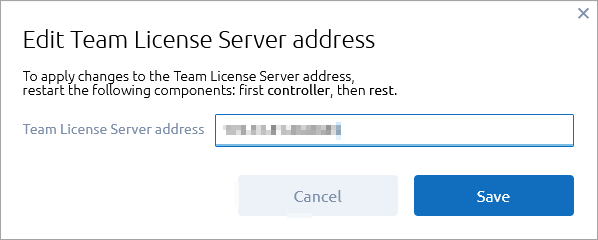
0.0.0.0:0
You must specify the appropriate port after the address. - Click Lease.
There is no need to restart any components after leasing the license. The instance will become activated automatically.
Make sure to specify the correct address of Team License Server. In case you specify the address incorrectly, your license will not be activated.
Contact our support team in case you have any questions regarding licensing issues.
Contact our support team in case you have any questions regarding licensing issues.
To drop the product license
- On the activated instance, click Drop next to the License field.
- Confirm the action in the subsequent dialog.
The product will be deactivated, and the information about the instance will be removed from Team License Server.
If you drop the license without removing the key from Team License Server and then start an experiment, animation, or any other runtime in Private Cloud, the license will be registered again automatically.
-
How can we improve this article?
-