

Applies to AnyLogic Cloud 2.8.1. Last modified on June 24, 2026.
When configuring the Inputs section, you can toggle the visibility of the experiment’s inputs, change the control types of the inputs, and expose the experiment’s internal settings:
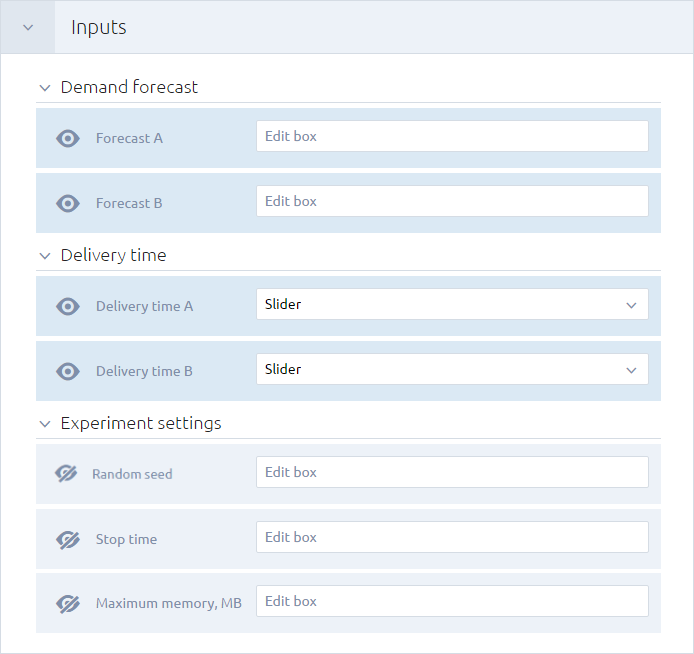
To show or hide an input element
- Expand the drop-down list to the right of the element.
-
Select Show or Hide to toggle the element’s display.
Select Hide if if you want to make the element invisible according to a hide condition.
Hide conditions can correlate to the values of other inputs in the experiment. In other words, if an input is equal to or not equal to a certain value, the current input will be hidden.
You cannot assign hide conditions to varying inputs or files, as well as objectives, constraints, or requirements of optimization experiments.
There is no limit to how many hide conditions an input can have. -
With Hide if select, add a hide condition by clicking Add hide condition below the input.
Specify the input, the operator, and the value using the controls:
You can add more hide conditions one by one.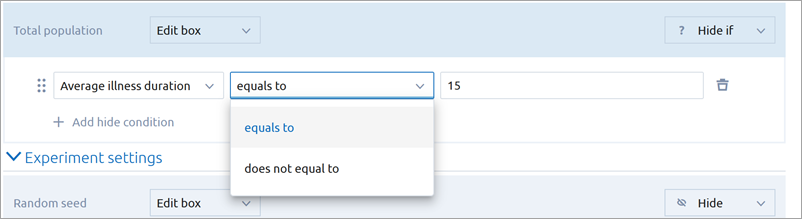
To reorder the conditions, click the icon on the left and drag the condition to the desired position.
To remove a hide condition, click the Remove button on the right.
Multi-run experiments imply that you may want to vary some of your inputs. Currently, you can make int, double, and boolean inputs vary in range.
As of version 2.7.0, AnyLogic Cloud also supports varying for complex inputs exported from from the AnyLogic desktop installation: radio buttons and combo boxes.
Input variation is supported in the variation, variation with replications, Monte Carlo 2nd order, optimization, and optimization with replications experiments.
To vary a numerical or Boolean input, select Discrete range from the drop-down list next to the input’s name in the AnyLogic Cloud dashboard editor.
In optimization experiments, you can also make double inputs into continuous ranges by selecting the appropriate option from the input’s drop-down list. When this option is selected for an input, the optimization engine generates the values for that input.
To vary the values of combo boxes and radio buttons when configuring the Inputs dashboard, select Varied values for such inputs. By default, the experiment executes runs for all available radio button or combo box options, varying the input across all possible values. Starting with version 2.7.1, you can prevent some options from being varied by clearing the corresponding checkboxes when modifying the inputs.
The order in the Inputs section mirrors that of the top-level agent of the model (usually the Main agent).
To set the order of the parameters in the Inputs section of the model experiment, you need to change the options in the Parameters preview section of the main agent properties in AnyLogic.
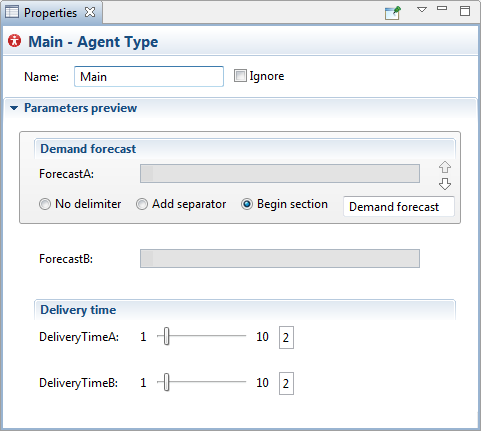
You can adjust each parameter as follows:
- Use the
 and
and  arrows to move a parameter up or down in the list.
 - To add a separating line above the parameter, select the Add separator option.
- To start a new section beginning with the parameter, select the Begin section option and enter the section name in the text field.
Model input names and associated control types are defined in the Value editor section of the corresponding parameter’s properties before exporting the model:

The Experiment settings section contains the internal settings of the experiment.
The following default control types are hidden by default, but you can make them available in the experiment’s dashboard if desired.
- Random seed — The number used to initialize the model’s random number generator.
-
Stop at — Defines the trigger that will stop the simulation. To define the simulation period, use the Start time, Start date, Stop time, and Stop date controls.
The defined start/stop time/date values can override the default values that you specified when exporting the model to AnyLogic Cloud.
- Start time — The time point at which the experiment will begin.
- Start date — The date when the experiment will begin.
- Stop time — The time point at which the experiment will stop.
- Stop date — The date when the experiment will stop.
-
Memory, MB / Memory per single run, MB — The maximum size of the Java heap allocated per single run. In multi-run experiments, this value applies to each run individually, rather than to the experiment as a whole. Here you can override the default value specified when setting up the model for AnyLogic Cloud.
Increasing this value reduces the number of runs that can be executed in parallel on a node. For example, on a machine with 64 GB of RAM, setting this parameter to 25 GB permits only two concurrent runs, even if additional CPU cores are available.
If your model’s run configuration contains files that serve as inputs, from there you can also override the uploaded file using the corresponding control.
Some experiments have unique control types that are visible in the Inputs section by default. These are relevant for the models that contain stochastics. For these experiments, the results of the simulation runs are unique and the values obtained for simulation runs performed with the same values are likely to be different. This means that the results obtained during a single simulation run may be unreliable, so we need to perform multiple runs (called replications or iterations, depending on the type of stochastic input set) for a single set of inputs.
-
Monte Carlo 1st order:
- Number of replications — How many replications will be performed, that is, how many different random seeds will be used to run the experiment.
-
Monte Carlo 2nd order:
- Number of iterations — How many times the different sets of inputs will be used to run the experiment. Depending on the type of experiment, the inputs are either random or generated by the optimization engine.
The feasibility of the solution relative to constraints is calculated before the run starts. Therefore, AnyLogic will not count infeasible solutions as iterations, but will attempt to look for other feasible solutions. - Number of replications — How many replications will be performed, that is, how many different random seeds will be used to run the experiment.
- Number of iterations — How many times the different sets of inputs will be used to run the experiment. Depending on the type of experiment, the inputs are either random or generated by the optimization engine.
-
Variation with replications:
- Number of replications — How many replications will be performed, that is, how many different random seeds will be used to run the experiment.
-
Optimization:
- Objective — The objective of the optimization experiment (see above).
- Number of iterations — How many times the different sets of inputs will be used to run the experiment. Depending on the type of experiment, the inputs are either random or generated by the optimization engine.
The feasibility of the solution relative to constraints is calculated before the run starts. Therefore, AnyLogic will not count infeasible solutions as iterations, but will attempt to look for other feasible solutions.
-
Optimization with replications:
- Objective — The objective of the optimization experiment (see above).
- Number of iterations — How many times the different sets of inputs will be used to run the experiment. Depending on the type of experiment, the inputs are either random or generated by the optimization engine.
The feasibility of the solution relative to constraints is calculated before the run starts. Therefore, AnyLogic will not count infeasible solutions as iterations, but will attempt to look for other feasible solutions. -
Number of replications — How many replications will be performed, that is, how many different random seeds will be used to run the experiment.
Due to the algorithm used by the genetic optimization engine, the actual number of iterations may differ from the value you specify, but it will always be a multiple of 32.
-
How can we improve this article?
-