

Starting from AnyLogic 8.9.9, it is now possible to configure 3D graphics settings for model animation. This allows you to control how detailed and realistic 3D animation appears while balancing GPU load and overall performance.
You can either use predefined presets for quick setup or manually fine-tune rendering options such as shadows, fog, level of detail, anti-aliasing, and other visual effects to achieve the desired balance between performance and image quality.
Graphics settings can be adjusted using built-in presets or configured manually:
- Low — Optimized for performance on older hardware.
- Medium — Balanced quality and performance for most systems.
- High — Best visual quality, higher GPU requirements.
- Custom — Manually adjust individual graphics options for a personalized balance of quality and performance.
| Setting | Low | Medium | High |
|---|---|---|---|
| Shadow quality | Disabled | Low | High |
| Fog | — | — | — |
| Level of detail |  |
|
— |
| PBR materials | — | |
|
| Render scale | 100 | 100 | 100 |
| Ambient occlusion | — | — | |
| Anti-aliasing | 2x MSAA | 4x MSAA | 8x MSAA |
To adjust the graphics settings
- Run the model.
-
In the model window, click the 3D graphics settings control
 .
.
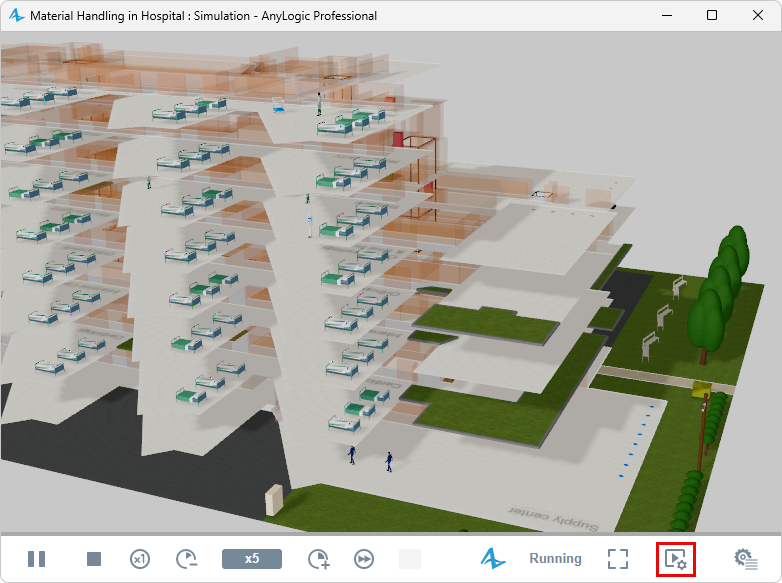
-
Choose one of the presets: Low, Medium, High, or choose Custom to manually configure the settings.
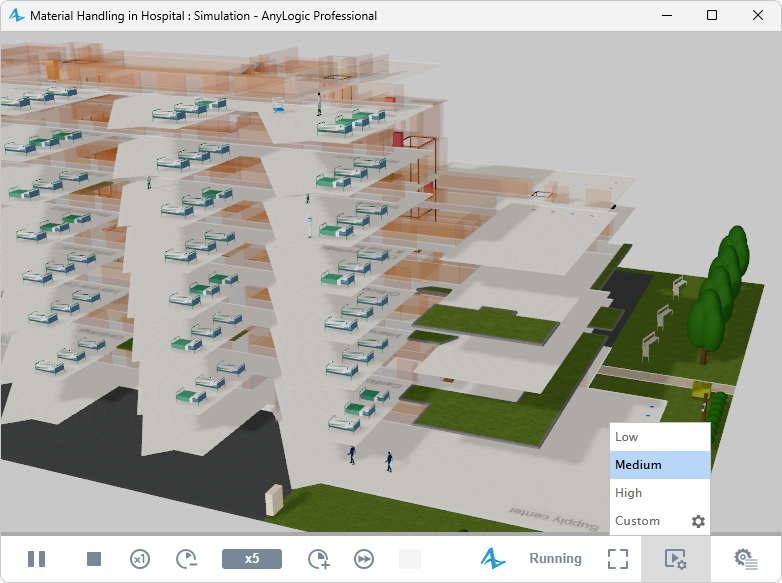
-
If you choose Custom, the 3D graphics settings panel appears, allowing you to configure the settings.
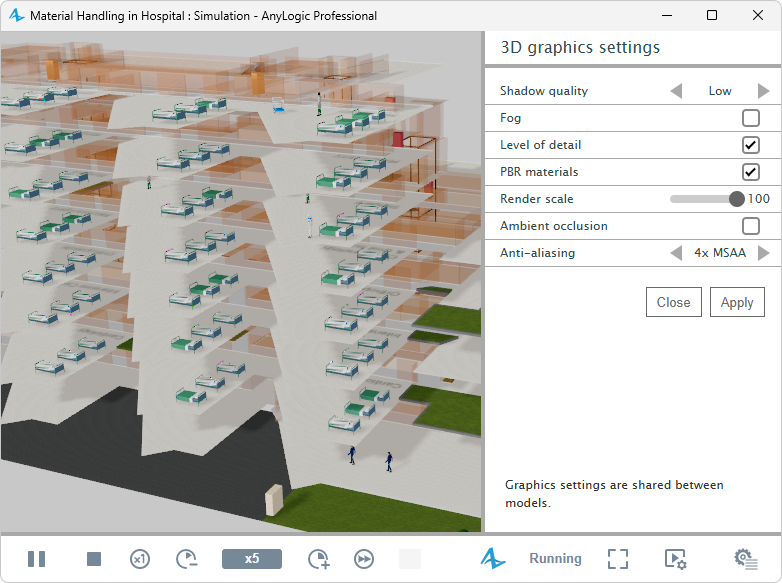
When Custom 3D graphics settings is selected, you can individually adjust options such as shadow quality, fog, level of detail, PBR materials, render scale, ambient occlusion, and anti-aliasing.
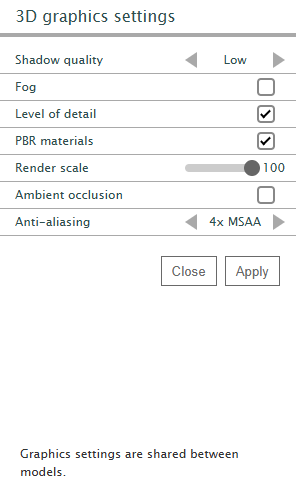
Each option allows you to balance visual quality and performance according to your system.
-
Shadow quality — Controls the resolution and detail level of shadows in the scene. Available settings:
- Disabled — shadows are turned off for maximum performance.
- Low — basic, low-resolution shadows for better performance.
- High — detailed, high-resolution shadows for the best visual quality at a higher performance cost.
- Fog — Enables or disables distance-based fog, adding depth and realism to the scene by simulating atmospheric scattering.
- Level of detail — Toggles Level of Detail (LOD) optimization, reducing model complexity at greater distances to improve performance.
- PBR materials — Enables Physically Based Rendering (PBR) materials for more realistic surface lighting and reflections.
- Render scale — Adjusts the internal rendering resolution relative to the display resolution. Lower values improve performance; higher values increase sharpness.
- Ambient occlusion — Enables shading that simulates soft shadows in creases and corners, enhancing depth perception.
-
Anti-aliasing — Reduces jagged edges on objects to produce smoother visuals. Choose a method:
- 2x MSAA — Basic smoothing with minimal performance impact.
- 4x MSAA — Medium smoothing, balanced quality and performance.
- 8x MSAA — Highest-quality smoothing with greater performance cost.
- SMAA — Modern post-processing smoothing method with low performance impact.
- Close — Closes the settings panel without applying changes.
- Apply — Applies the changes.
-
How can we improve this article?
-