

This article covers elements you won’t be using very often - the Advanced properties of library blocks.
In case you are not yet aware, this may come as a surprise: many blocks of AnyLogic libraries contain two separate properties sections, both labeled Advanced.
Let’s explore this using the properties of the Delay block as an example:
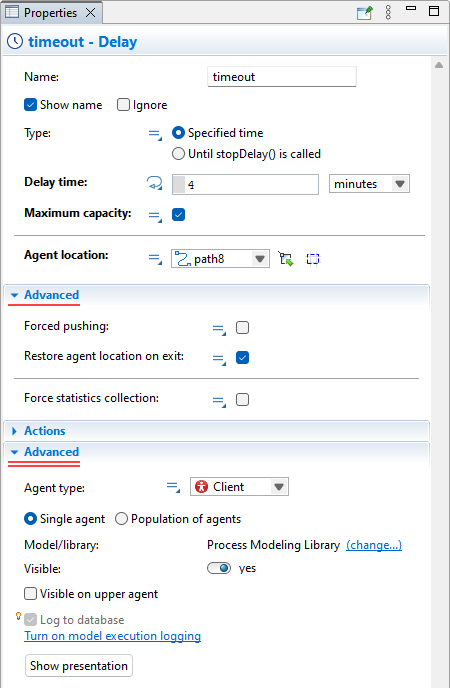
In the first Advanced section, which is located above, you can see specific properties of the block that are not typically used right away. These may include fields for fine-tuning the block or solving particular tasks. You can find detailed descriptions of these properties in the corresponding documentation article for the block.
This article focuses on the second Advanced properties section, which is located at the bottom.
First, let’s briefly explain the purpose of these properties and why they are included here. After that, we’ll provide the standard reference information for them.
Certain properties may seem familiar to you, as they might resemble those of agents or agent populations.
The reason is that, technically, flowchart blocks in AnyLogic are also implemented as agents. In the library’s sources, each block type is defined as a separate agent type. Consequently, blocks inherit the standard set of agent properties.
However, some of these inherited properties are not particularly relevant to flowchart blocks, so they have been moved to a separate section.
- Advanced properties
-
Agent type — The type of agents flowing through this flowchart block. The name of the option may differ depending on the library (Agent type in Process Modeling Library, Pedestrian type in Pedestrian Library, Material item type in Material Handling Library, Car type in Road Traffic Library, etc.), and the block itself, e.g. in the Split block there are two fields: Original type and Copy type.
The value is propagated here according to the flowchart logic. If some custom type is set in the block where the agent is generated (e.g. in the Source block the actual type value is defined in the New agent field in the Agent properties section), then it is automatically set up for every flowchart block connected to this block, until it is explicitly changed to some other type (e.g. if the subsequent Split block has created the copy of the agent of other type, and for the flowchart branch starting there the agent type will differ). So there is no need in modifying this option, it will automatically be configured according to the process of your flowchart. Moreover, if you set the custom type here, but not in the special field designed for it (like the New agent property of the Source block mentioned above), you will get the "Agent cannot be cast to class..." compilation error.Single agent — If selected, the block defines a single flowchart block.
Population of agents — If selected, the element defines a replicated flowchart block that contains multiple flowchart blocks of the same type.
Population is — [Visible if the Population of agents option is selected] Here you choose how the replicated flowchart block is created.
There are three alternative options:- Initially empty — Use this option if you plan to create flowchart blocks programmatically on model startup. As this approach can be complex to implement, we recommend choosing the Contains a given number of agents option and setting the number of block instances within a replicated block explicitly.
- Contains a given number of agents — Use this option if you need a replicated flowchart block with the known number of block instances. Specify the number of block instances in the field Initial number of agents below.
- Loaded from database — Use this option when you have replicated block data stored in a database, and want to create flowchart block instances by reading data from the database table. We do not recommend using this option. It was designed for creating agent populations, not for replicated flowchart blocks. It provides a means to read agent parameter data from the database. While you can reuse this option for loading data related to static parameters of flowchart blocks, it will not support dynamic parameters. Therefore, for the majority of library blocks, this approach will not work.
Initial number of agents — [Visible if the Population is: Contains a given number of agents] Here you specify the initial number of block instances in the replicated flowchart block.
Table — [Visible if the Population is: Loaded from database] The database table containing the data of the replicated flowchart block. Below are the sections to define the data fetch conditions.
Mode — [Visible if the Population is: Loaded from database] Here you can choose whether AnyLogic should create one block instance per record (One agent per database record), or multiple instances (Multiple agents per record).
Quantity is contained in column — [Visible if the Mode: Multiple agents per record] The name of the database table’s column containing the number of the block instances that should be created for each table entry.
Model / library — The name of the AnyLogic model, or library where the agent type of this flowchart block is defined. We do not recommend changing the value. This option was designed for agents and agent populations to simplify copying agent types from one model to another. In the context of library blocks, this doesn't make sense.
Visible — Here you specify whether the flowchart block is visible at the model runtime, or not. In most cases, we want all blocks to remain visible, so there is little reason to modify the default setting and hide a block.
Visible on upper level — If selected, the flowchart block is also visible on the diagram of the upper level agent. By default, this option is disabled, and in most cases there's no need to change the setting. Typically, we visualize the agent using an animation shape or an icon, and we don't expose the internal logic blocks of the agent on the interface of a higher-level agent in the model's hierarchy.
Optimize for — [Visible if the Population of agents option is selected] Replicated flowchart block in AnyLogic is implemented as a Java collection. Here you can change Java type of the collection. We give you this opportunity since one implementation gives best performance on adding and removing collection elements, while another — on accessing elements by index (searching by index, removing by index). For more details on collection types please see Optimizing the performance of agent population.
Log to database — If selected, all information about this flowchart block will be saved into the model execution log (if logging is turned on in the model’s Database properties). Using this option, you can specify a certain set of blocks for which statistics should be collected, thereby improving your model's performance.
Show presentation — If you cannot see this agent’s presentation on the diagram of the upper level agent, click this button to create agent presentation there. Please refer here for details. This control doesn’t make sense in the current context, because library blocks have no presentation, only icons, so clicking this button in the properties of a library block will have no effect.
-
How can we improve this article?
-