

To run models in the live session mode, you need the Omniverse USD Composer application installed through the Omniverse Launcher. Note that the Omniverse Launcher is currently deprecated and may be available in legacy builds for users who have previously configured the Omniverse integration.
To use the integration, it is recommended that you sign up for an Omniverse developer account on the official website. Alternatively, you can use the registration-free feature branch build available on GitHub. However, note that this is a frequently updated build designed for testing and prototyping only. If you are looking to develop stable solutions, it is advisable to sign up for a developer account anyway.
Apply custom prims, scaling, and coordinate transformations in the properties of AnyLogic elements rather than in Omniverse.
To manually join the live session to view the running model in Composer:
- Make sure that the model with the connector is open and launched in AnyLogic, even if the model is paused or stopped.
- Once the model is running, open the scene in Composer. This is not necessary if the automatic startup of Composer has been enabled.
-
In the Omniverse Composer window, expand the Live drop-down list and select Join session.
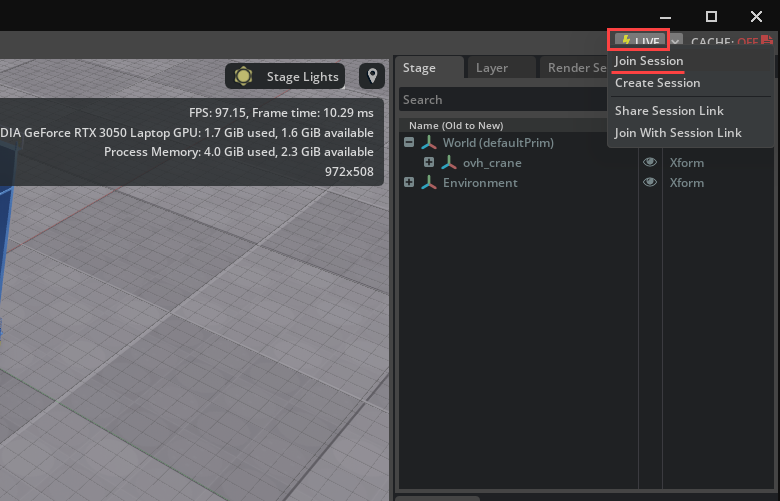
- In the dialog that appears, select the session identified as AnyLogicLiveSession. The full name of the session, including the timestamp, is shown in the console view of a running AnyLogic model.
-
Click Join.
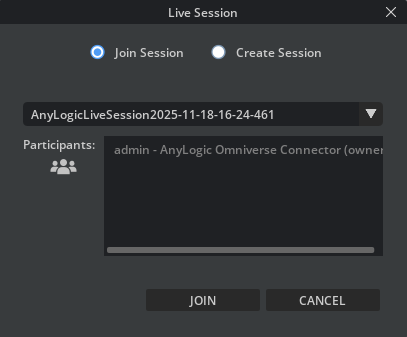
Once the USD scene is connected to the model, you will see the live session in the Layers tab, and the session participants in the upper right corner.
To end the session, expand the Live drop-down list and click Leave session.
-
How can we improve this article?
-