

Applies to AnyLogic Cloud 2.8.1. Last modified on June 18, 2026.
You can configure the contents of the experiment dashboard by including the desired set of inputs and outputs and organizing them into sections.
To edit the dashboard contents
-
In the sidebar of the experiment screen, expand the model version that contains the experiment you want to configure.
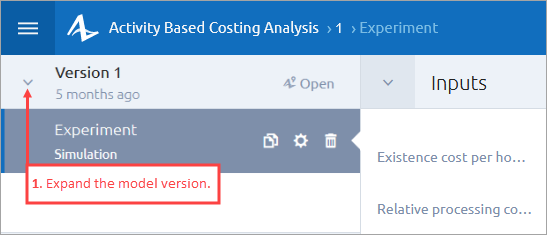
-
Click the required experiment, then click the icon that appears to the right. The cog icon changes to
 .
.
The experiment dashboard will switch to edit mode, allowing you to modify its contents: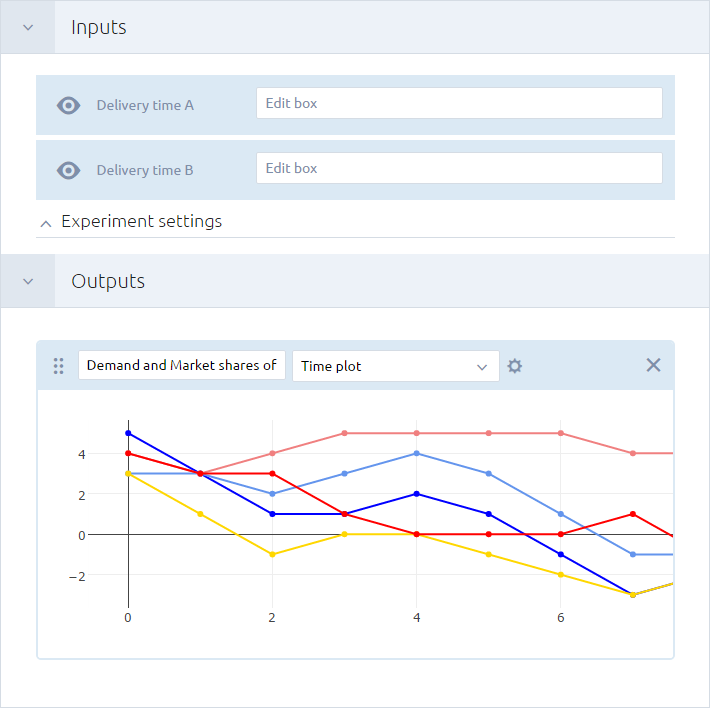
- Configure the Inputs and Outputs sections as needed.
- If you want to change the experiment’s name, type the new name in the edit box in the sidebar.
- Save your changes by clicking the Save dashboard button in the experiment toolbar or the
 button in the sidebar. To discard changes, click the Cancel button in the experiment toolbar.
-
How can we improve this article?
-