


AnyLogic allows you to collect statistics about the density of moving units in the simulated space and display this information in the animation as a density map. This functionality is supported for pedestrians and trains.
After adding the Density Map element, select the type of the density map (pedestrian or railroad) to display in your simulation model.
Starting with version 8.9.9, AnyLogic supports two density calculation modes: space-based and network-based.
-
Space-based density map calculates density by dividing the model space into a hidden grid of small areas and counting the number of agents in each area. This calculation uses only agent positions and ignores the underlying network structure such as nodes or paths.
This approach to density calculation is the same one used in density maps before version 8.9.9.
It works for pedestrians and transporters, regardless of whether the transporters are path-guided or operate in free space. -
Network-based density map calculates density based on how occupied network elements are by agents. Density is calculated on network nodes, which include point, polygonal, and rectangular nodes, and along movement paths represented by Path, Conveyor, and Railway Track markup elements. Nodes appear as heat spots around the element, while paths show density along the routes where agents move.
It works for path-guided transporters, railroads, and conveyors.
You will notice that as the agents move through the simulated space, the layout is gradually painted in different colors. The color of each point in space corresponds to the current density in that particular area. The density map is constantly repainted according to the actual values: if the density changes at any point, the color changes dynamically to reflect that change. If the density is zero, the area is not painted at all. If you have transporters and pedestrians moving in the same area, the density maps will not show the total density, only a separate one for each type.
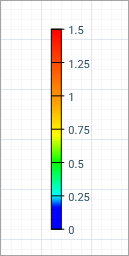
The element itself acts as the color legend for the density map. It displays the correspondence between density values and colors on the map (see the right side on the figure below).
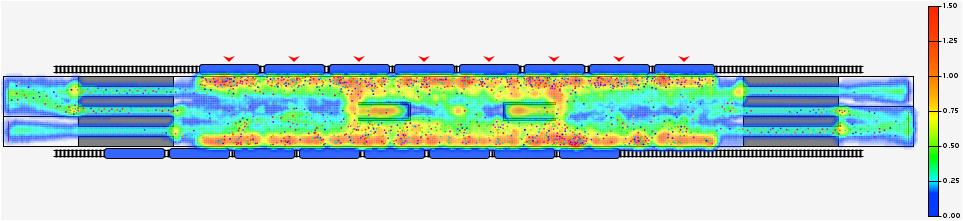
The red color indicates the critical density (by default, it is equal to 1.5 units/m2). The blue color is used for low densities. If the density in some area is zero, the density map for that area is not drawn at all.
For example, the legend shown in the figure above tells us that the yellow color on the map corresponds to a density of 0.75 pedestrians/m2.
You can change the logarithmic color scheme to linear or some other scheme, turn attenuation on or off, and so on.
To add a density map
-
Drag the
 Density Map element from the Space Markup palette of the
  Pedestrian Library or
  Rail Library into the graphical editor. At runtime, it will display the density map legend. The legend displays the correspondence between density values and colors on the density map.
-
In the properties, select whether the density map is space-based or network-based.
- Space-based — Calculates density from agent positions in the model space, ignoring the network structure. Suitable for pedestrians and transporters.
- Network-based — Calculates density on network nodes and movement paths based on how occupied those markup elements are by agents. Suitable for railways, conveyors, networks for path-guided transporters.
-
Next, select the Type of the density map:
- Pedestrian to display the density map for pedestrians (Space-based only).
- Railroad to display the density map for railroads (Network-based only).
-
You can select your density map to display either historical data, that is, the values collected from the start of the model run (Time period: Complete model run) or the values collected over the specified period of time (Time period: Sliding window). You can also select the Displayed density value: either Maximum or Mean.
The amount of memory required to process the data increases proportionally to the size of the sliding window.
- If you are collecting maximum density values over the entire model run, these values can be displayed either as maximum observed density values (if attenuation is turned off) or as the actual density map for the most recent period of time (if attenuation is turned on). With attenuation turned on, as the density decreases, the color for the corresponding zone on the density map will change accordingly, but not immediately. To turn the attenuation on, select the Enable attenuation check box.
- If you are unhappy with the way the density map is painted over the layout, making it hard to see, you can increase the transparency of the density map using the Transparency slider.
- The density map is often used to identify areas of critical density. At model runtime, the areas with density values equal to or greater than the critical density threshold are colored in red (unless some other colors are set using the Custom option of the Color scheme property). By default, the critical density value is 1.5. The value here depend on the type of density map; for a space-based map, these are units, that is, the agents (pedestrians or transporters), while for a network-based map the density depends on the size of the agent relative to the size of the network element where the agent is located. For railroad networks, only the length of the agent is taken into account. You can change this value in the Critical Density parameter.
- By default, AnyLogic uses a logarithmic color scheme. In this case the color changes logarithmically from the “minimum” color (blue) to the “maximum” color (red). This color scheme is often used when you need to pay attention only to the density values close to the critical value threshold. You can change the logarithmic color scheme to the linear scheme by selecting the Linear option of the parameter Color scheme. This is the simplest color scheme: the color changes linearly from the “minimum” color to the “maximum” (red) color. You can even define your own color scheme by selecting the Custom option of the Color scheme property.
A model can contain only one density map of each type. A density map is placed on one level in the graphical editor, but it can display density on multiple levels in the model.
To control where the density map is shown, use the visibility API functions. You do not need to add a separate density map to each level.
- show() and hide() set the visibility of the map across all levels;
- show(level) and hide(level) set the visibility of the map on the specified level.
By default, a density map is visible on all levels when the model starts. Newly initialized levels inherit the global visibility state of the map.
The show(level) and hide(level) functions override the visibility of the map for the specified level only and do not affect the default visibility of other levels.
The show() and hide() functions override the visibility settings for all levels, including levels previously configured with show(level) or hide(level).
Demo model: Pedestrian Density Map Open the model page in AnyLogic Cloud. There you can run the model or download it (by clicking Model source files). Demo model: Pedestrian Density MapOpen the model in your AnyLogic desktop installation.- General
-
Name — The name of the shape. The name is used to identify and access the shape from code.
Show name — If selected, the name of the shape is displayed in the graphical editor.
Lock — If selected, the shape is locked. Locked elements do not respond to mouse clicks, and they cannot be selected in the graphical editor until you unlock them. This is often needed when you want to prevent the element from being edited while other elements are placed over it.
Ignore — If selected, the shape is excluded from the model.
Type — Specifies the type of agents displayed by the density map: Pedestrian, Transporter, Railroad, or Conveyor. Pedestrian density maps are available only for the Space-based calculation mode. Railroad and Conveyor density maps are available only for the Network-based calculation mode. For Transporter density maps, both calculation modes are available, but path-guided transporters can only use the Network-based calculation mode. Transporter and Conveyor density maps are not yet supported in AnyLogic 9.
Time period — Specifies how density data is collected. The default option is Complete model run, where data is collected from the start of the model run to the present. The other option is Sliding window, which represents a length of time over which the density data is collected. For example, if you specify the sliding window of 5 minutes, the density map will display only the information collected over the last 5 minutes, ignoring any earlier data.
Sliding window — [Visible if Time period: Sliding window] Specifies the exact time period over which the data is collected.
Displayed density value — Specifies which density value will be used to display on the density map. It can be either Maximum value or Mean value.
Enable attenuation — If selected, the density map will be shown with attenuation. In this case, the actual density map for the most recent period of time will be shown, not the maximum observed densities. When the density goes down, the color for the corresponding zone on the density map changes accordingly (but not immediately, with the specified delay).
Transparency — Specifies the transparency level for the density map. Enter a fractional value between 0 and 1. 1 means fully transparent map (the density map is not visible), 0 means fully opaque density map (the animation below the density map is not visible at all).
Critical density — Specifies the critical density value. All areas with densities equal to or greater than the critical density threshold will be painted red in the animation (unless some other color is set with Custom as the Color scheme).
Color scheme — The color scheme for the density map. There are three options available:
- Logarithmic — The color will change logarithmically from the “minimum” color (blue) to the “maximum” color (red). This color scheme is often used when you need to pay attention only to the density values close to the critical value threshold.
- Linear — The simplest color scheme: color will change linearly from the “minimum” color (blue) to the “maximum” color (red).
- Custom — You can define your own color scheme and define the correspondence between colors and density values in the Custom color field below.
Custom color — [Visible if Color scheme: Custom] If you want to define a custom color scheme for the density map, specify the expression that will return different colors depending on the density value (you can obtain the density value using the local variable density).
You can see an example of such an expression set up as the default value:
density > self.criticalDensity * 0.7 ? red : transparent
It defines that the color red will be used for the densities that are higher than the specified threshold value (70% of the critical density value). For the lower densities, the density map will not be drawn at all.
If the transparency argument specified in your custom code equals 0, i.e. the color that your code returns is fully opaque, then the setting of the Transparency parameter will be applied to your custom color scheme. - Position and size
-
Level — The name of the level for which the density map will be displayed.
X — The X-coordinate of the density map legend.
Y — The Y-coordinate of the density map legend.
Width — The width of the density map legend (in pixels).
Height — The height of the density map legend (in pixels).
- Visibility and presentation
-
Visible — If selected, the shape is visible during animation at model runtime.
Show in — Select whether the shape is displayed in both 2D and 3D animation, 2D only, or 3D only.
Agent presentation — If selected, the shape is also visible on the upper-level agent that hosts the agent containing this shape.
- Calculation basis
-
Function Description DensityMapBasisType getCalculationBasis() Returns the calculation basis of the density map: whether it is network-based or space-based. Possible values are DensityMapBasisType.SPACE (for a space-based density map) or DensityMapBasisType.NETWORK (for a network-based density map). DensityMapBasisType setCalculationBasis(DensityMapBasisType type) Sets the calculation basis of the density map. May be called only before the initialization of the density map.
type — the desired type of the density map
Possible values:
DensityMapBasisType.SPACE — the map will be space-based
DensityMapBasisType.TRANSPORTER — the map will be network-based - Type
-
Function Description DensityMapType getType() Returns the type of the density map depending on whom the statistics are collected: pedestrians, transporters, railroads, or conveyors.
Possible values:
DensityMapType.PEDESTRIAN — the density map is displayed for pedestrians
DensityMapType.TRANSPORTER — the density map is displayed for transporters
DensityMapType.CONVEYOR — the density map is displayed for conveyors
DensityMapType.RAILROAD — the density map is displayed for railroadsDensityMapType setType(DensityMapType type) Sets the density map type to either pedestrians, transporters, conveyors, or railroads. May be called only before the initialization of the density map.
type — the desired type of the density map
Possible values:
DensityMapType.PEDESTRIAN — the density map will be displayed for pedestrians
DensityMapType.TRANSPORTER — the density map will be displayed for transporters
DensityMapType.CONVEYOR — the density map will be displayed for conveyors
DensityMapType.RAILROAD — the density map will be displayed for railroads - Displayed density value
-
Function Description DensityMapDisplayedValue getDensityValue() Returns the type of value used to build the density map.
Possible values:
DENSITY_VALUE_MAX — maximum density value
DENSITY_VALUE_MEAN — mean density valuevoid setDensityValue(DensityMapDisplayedValue valueType) Sets the type of density value used to build the density map.
valueType — a constant defining density value type. Possible values:
DENSITY_VALUE_MAX — maximum density value
DENSITY_VALUE_MEAN — mean density value - Statistics
-
Function Description double currentDensity(double x, double y) Returns the current density value in the area neighboring the specified point, units/m2. The units here mean either pedestrians or transporters, depending on the density map type. This value does not reflect exactly the current situation, it accumulates historic data.
This function is available only for space-based density maps.
x — the X-coordinate of the point
y — the Y-coordinate of the pointdouble currentDensity(Level level, double x, double y) Returns the current density value in the area neighboring the specified point at the specified level, units/m2. The units here mean either pedestrians or transporters, depending on the density map type. This value does not reflect exactly the current situation, it accumulates historic data.
This function is available only for space-based density maps.
level — the level where the point is located
x — the X-coordinate of the point
y — the Y-coordinate of the pointdouble currentDensity(DensityMapCompatibleNetworkElement element) Returns the current density value at the specified density map-compatible network element. For network-based density maps, the value is based on the size of the agents relative to the size of the network element they occupy. This value does not reflect exactly the current situation, it accumulates historic data.
This function is available only for network-based density maps.
element — the density map-compatible network elementdouble currentDensity(Level level, DensityMapCompatibleNetworkElement element) Returns the current density value at the specified density map-compatible network element at the specified level. For network-based density maps, the value is based on the size of the agents relative to the size of the network element they occupy. This value does not reflect exactly the current situation; it accumulates historical data.
This function is available only for network-based density maps.
level — the level where the element is located
element — the density map-compatible network elementdouble maximumDensity(double x, double y) Returns the maximum density value at the specified point, units/m2.
This function is available only for space-based density maps.
x — the X-coordinate of the point
y — The Y-coordinate of the pointdouble maximumDensity(Level level, double x, double y) Returns the maximum density value at the specified point at the specified level, units/m2.
This function is available only for space-based density maps.
level — the level where the point is located
x — the X-coordinate of the point
y — the Y-coordinate of the pointdouble maximumDensity(DensityMapCompatibleNetworkElement element) Returns the maximum density value at the specified density map-compatible network element. For network-based density maps, the value is calculated from the size of the agents relative to the size of the network element they occupy.
This function is available only for network-based density maps.
element — a density map-compatible network elementdouble maximumDensity(Level level, DensityMapCompatibleNetworkElement element) Returns the maximum density value at the specified density map-compatible network element at the specified level. For network-based density maps, the value is based on the size of the agents relative to the size of the network element they occupy.
This function is available only for network-based density maps.
level — the level where the element is located
element — a density map-compatible network elementdouble meanDensity(double x, double y) Returns the mean density at the specified point, units/m2.
This function is available only for space-based density maps.
x — the X-coordinate of the point
y — the Y-coordinate of the pointdouble meanDensity(Level level, double x, double y) Returns the mean density at the specified point at the specified level, units/m2.
This function is available only for space-based density maps.
level — the level where the point is located
x — the X-coordinate of the point
y — the Y-coordinate of the pointdouble meanDensity(DensityMapCompatibleNetworkElement element) Returns the mean density value at the specified density map-compatible network element. For network-based density maps, the value is based on the size of the agents relative to the size of the network element they occupy.
This function is available only for network-based density maps.
x — the X-coordinate of the point
y — the Y-coordinate of the pointdouble meanDensity(Level level, DensityMapCompatibleNetworkElement element) Returns the mean density at the specified density map-compatible network element at the specified level. For network-based density maps, the value is based on the size of the agents relative to the size of the network element they occupy.
This function is available only for network-based density maps.
level — the level where the element is located
x — the X coordinate of the point
y — the Y coordinate of the pointvoid reset() Resets the values of the density map that the user can see and obtain by calling the maximumDensity() function to the current values of density. - Color scheme
-
Function Description DensityMapColorScheme getColorScheme() Returns the color scheme of the density map.
Valid values:
LINEAR_COLOR_SCHEME
LOGARITHMIC_COLOR_SCHEME
CUSTOM_COLOR_SCHEMEvoid setColorScheme(DensityMapColorScheme colorScheme) Sets the new color scheme.
colorScheme — the new color scheme.
Valid values:
LINEAR_COLOR_SCHEME
LOGARITHMIC_COLOR_SCHEME
CUSTOM_COLOR_SCHEMEdouble getCriticalDensity() Returns the critical density for the density map; the units returned depend on the type of the density map, see the explanation above. void setCriticalDensity(double criticalDensity) Sets the new critical density for the density map; the units used depend on the type of the density map, see the explanation above.
criticalDensity — the new critical density valueColor getColor(double density) Returns the color associated with the specified density value.
density — The density value. - Attenuation and transparency
-
Function Description double getTransparency() Returns the density map transparency. The value is in the range [0, 1], 0 means fully opaque, 1 means fully transparent. void setTransparency(double transparency) Sets the new density map transparency.
transparency — the new transparency value. The value should be in the range [0, 1], 0 means fully opaque, 1 means fully transparent.boolean isEnableAttenuation() Returns true if the density map is shown with attenuation; returns false otherwise. void setEnableAttenuation(boolean enable) Turns density map attenuation on/off.
enable — attenuation. If enable is true — the density map is shown with attenuation, if it is false — attenuation is turned off. - Visibility
-
Function Description boolean isShown() Returns whether the density map is shown globally (true if shown, false if hidden). boolean isShown(Level level) Returns whether the density map is shown on the specified level (true if shown, false if hidden).
level — the level for which the density map visibility is checkedvoid show() Shows the density map across all levels.
This function makes the density map visible on all levels, including levels where it was previously hidden with hide(level).void show(Level level) Shows the density map on the specified level.
level — the level where you want to display the density mapvoid hide() Hides the density map across all levels.
This function hides the density map on all levels, including levels where it was previously shown with show(level).void hide(Level level) Hides the density map on the specified level.
level — the level where you want to hide the density mapvoid display(boolean flag) Sets the visibility of the density map.
flag — the visibility; if true, the density map is shown, if false, the density map is hiddenboolean isVisible() Returns true if the density map legend is visible; returns false otherwise. void setVisible(boolean v) Sets the visibility of the density map legend.
v — visibility. If v is true — the density map legend is set to be visible, if it is false — not visible. - Level
-
Function Description Level getLevel() Returns the level, for which the density map is displayed. - Legend position
-
Function Description double getX() Returns the X-coordinate of the density map legend. double getY() Returns the Y-coordinate of the density map legend. void setX(double x) Sets the X-coordinate of the density map legend.
x — the new X-coordinatevoid setY(double y) Sets the Y-coordinate of the density map legend.
y — the new Y-coordinate - Legend size
-
Function Description double getWidth() Returns the width of the density map legend (in pixels). double getHeight() Returns the height of the density map legend (in pixels). void setWidth(double width) Sets the width of the density map legend (in pixels).
width — the new widthvoid setHeight(double height) Sets the height of the density map legend (in pixels).
height — the new height - Sliding window
-
Function Description double getSlidingWindow() Returns the sliding window size, in model time units. double getSlidingWindow(TimeUnits units) Returns the sliding window size, in specified time units.
units — the time unitssetSlidingWindow(double time) Enables the sliding window and sets its size in model time units. You can only enable the sliding window before the density map is initialized.
time — the sliding window size, in model time unitsvoid setSlidingWindow(double time, TimeUnits units) Enables the sliding window and sets its size in specified time units. You can only enable the sliding window before the density map is initialized.
time — the sliding window size
units — the time units - Removal
-
Function Description void remove() Removes the density map from the presentation. If the map is not a part of presentation, the function does nothing. Removal from the presentation does not necessarily mean removing from the model logic, since logical networks and routes may have been created before the removal and survive it.
-
How can we improve this article?
-