


A GIS network can be created from markup elements existing on a GIS map only. You need to add a  GIS Map to your model before you add any GIS markup.
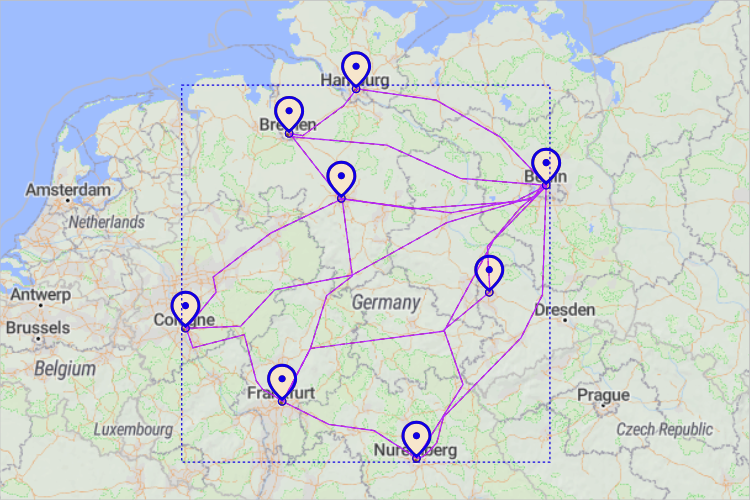
When you connect GIS points or regions with GIS routes, they become a network:
 GIS Point and
  GIS Region — Use these elements as nodes that define countries, cities, warehouses, stores, etc. on your map.
 GIS Route — Use GIS routes to create a network by connecting nodes, points, or regions.
If you manually connect, for instance, a GIS route to a GIS point, you will see that the connection is highlighted in purple. It means that the elements are now parts of a single network:
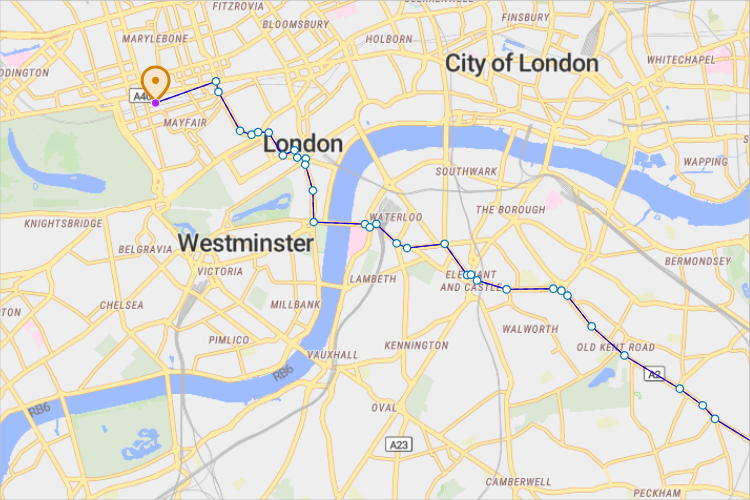
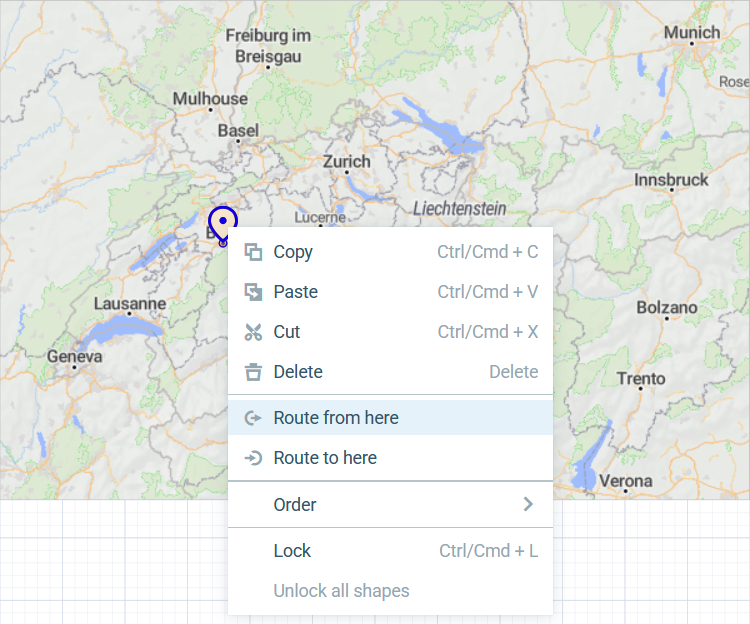
An easy way to build networks is to create routes directly from GIS points on the map. First, you need to open the  Space Markup palette and drag a GIS Point element to the map. Then right-click the point and select either
  Route from here or
  Route to here to select this GIS point as one of the route’s end points.
The agent movement in GIS space is influenced by the space markup networks you create on the map.
- General
-
Name — The name of the network. The name is used to identify and access the network from code.
Lock — If selected, the element is unresponsive: it will ignore mouse actions at model design time. To select the element, click its icon in the elements view.
Ignore — If selected, the network is excluded from the model.
- Visibility and presentation
-
Visible — If selected, the network is visible in the presentation at model runtime.
Show in — Select whether the element is displayed in both 2D and 3D animation, 2D only, or 3D only.
Agent presentation — If selected, the network is included in the presentation of the agent. This means that if the agent hosting this network is embedded in another agent, the element will remain visible in that higher-level agent.
-
How can we improve this article?
-