



Using the GIS Point space markup element, you can define a point on the map, such as a city or a specific destination. You can place this element anywhere on the map. Each GIS point that you create has latitude and longitude coordinates.
A GIS Point element can be added to a GIS map only. You need to add a  GIS Map to your model before you add any GIS markup.
To add a point to the map
- The simplest way to add a GIS point to the map is to create one using the search menu. You can convert a search result to a GIS point with a right click, selecting Convert to GIS point in the context menu. The created GIS point will have its title automatically filled in with the full address of the location.
By default, a GIS point created from the search menu has fixed coordinates. To adjust the point’s position, click the element on the map or in the elements view, open its properties and deselect the Fixed position check box. Now you can reposition your point by dragging it around the map or by entering the necessary coordinates in the properties. - Alternatively, you can drag the
 GIS Point element from the GIS section of the
  Space Markup palette onto the GIS map.
However you edit the map, GIS points stay at their respective coordinates.
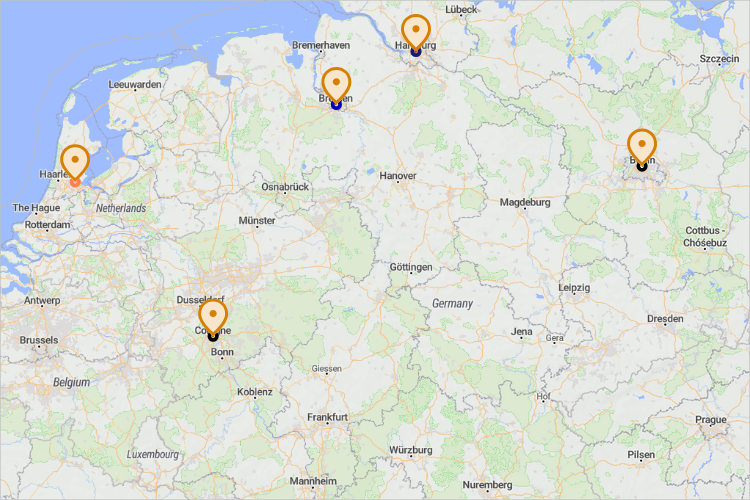
You can customize the appearance of your GIS points by changing the line color, thickness and style, as well as the fill color. In design time, the points will look like those shown in the figure below:
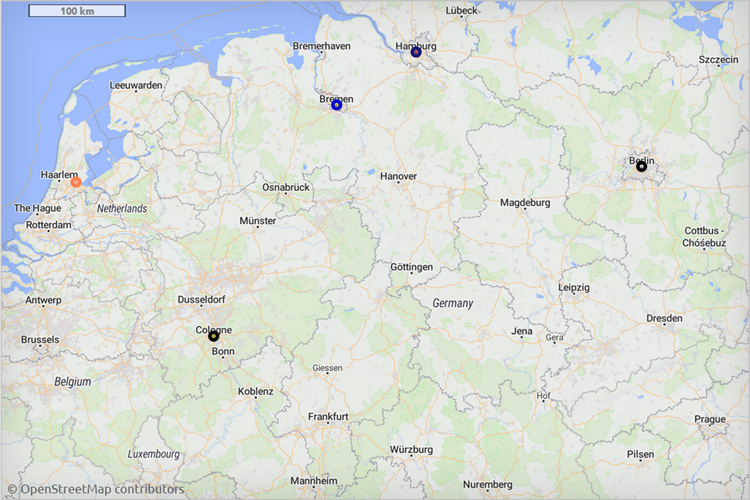
At model runtime, you will see the points without the pins:
- General
-
Name — The name of the GIS point. Used to identify and access the point from code.
Lock — If selected, the element is unresponsive: it will ignore mouse actions at model design time. To select the element, click its icon in the elements view.
Ignore — If selected, the point is excluded from the model.
Fixed position — If selected, repositioning by dragging is disabled. The shape cannot be moved, but you can select it to change other properties.
Title — The title that is accessible at runtime via API. When you convert a search result into a GIS point, the title will be automatically filled with the address of that location.
- Appearance
-
To select a permanent color or no color, use the color picker. To make the color, line width or line style change dynamically, switch the respective field to the dynamic value editor and specify the expression to be re-evaluated.
Fill color — The GIS point’s fill color.
Line color — Outline color.
Line width — Outline width. To define it, use the buttons, define a value or enter a dynamic expression.
Line style — Outline style: solid, dashed, or dotted. To define it, use the buttons or insert a dynamic value.
- Position and size
-
Latitude — The latitude of the point on the map (-90° ... (South) ... 0° ... (North) ... 90°)
Longitude — The longitude of the point on the map (-180° ... (West) ... 0° ... (East) ... 180°)
Radius — The radius of the point.
- Visibility and presentation
-
Visible — If selected, the shape is visible in the presentation at model runtime. Can be set to a dynamic expression that makes the point visible when evaluated to true.
You can dynamically modify the properties of a GIS point at model runtime using the following API.
- General
-
Function Description String getTitle() Returns the title of the GIS point. void setTitle(String title) Sets a new title for the GIS point.
title — a new title.boolean isVisible() Returns true if the element is visible; returns false otherwise. void setVisible(boolean v) Sets the visibility of the markup element.
v- visibility: true — visible, false — not.INetwork getNetwork() Returns the GIS network this markup element belongs to or null if this element is not a part of a network. GISRoute getConnection(int index) Returns the GIS route that has the provided index and connects this GIS node to another GIS node.
index — the index of the required connection in range (0, this.getConnectionsCount() - 1)int getConnectionsCount() Returns the number of this GIS node’s connections to other GIS nodes. - Location
-
Function Description double getLatitude()
double getLongitude()Return the latitude and longitude coordinates of the point. Point getLocation() Returns the (latitude, longitude) of this GIS point. Point getLocation(Point out) Returns the (latitude, longitude) of this GIS point. The result is written to the provided out object, if not null.
out — the Point object to write to, may be null. - Distance
-
Function Description double distance(double latitude, double longitude) Calculates the distance from this point to another, in meters.
latitude — the latitude of the point.
longitude — the longitude of the point.double distance(double latitude, double longitude, LengthUnits units) Calculates the distance from this point to another, in the given length units.
latitude — the latitude of the point.
longitude — the longitude of the point.
units — the length units.double distance(GISPoint givenPoint) Calculates the distance from this point to another given point, in meters.
givenPoint — the point to which you need to calculate the distance.double distance(GISPoint givenPoint, LengthUnits units) Calculates the distance from this point to another given point, in the given length units.
givenPoint — the point to which you need to calculate the distance.
units — the length units.double getNearestPoint(double lat, double lon, Point out) Returns the distance to the nearest point, in meters.
lat — the latitude of the point.
lon — the longitude of the point.
out — the output point to write the result to.double getNearestPoint(Point givenPoint, Point out) Calculates which point is nearest to the given point and writes it to the output parameter. Returns the square of the distance between these points, in meters.
givenPoint — the GIS point the distance to which you need to calculate.
out — the output point to write result to. - Appearance
-
Function Description double getRadius() Returns the radius of this GIS point, measured in pixels. void setRadius(int radius) Dynamically sets the radius of the GIS point.
radius — the point’s radius, measured in pixels.Color getFillColor() Returns the fill color of the shape, or null if the shape has no fill color or has a textured fill (in this case, getFillTexture() should be used instead). void setFillColor(Paint color) Sets the fill color (or texture) of the shape.
fillColor — the new fill color, null — no fill color.Texture getFillTexture() Returns the fill texture of the shape, if the shape has fill texture. Color getLineColor() Returns the color of the markup element’s outline, or null if the markup element has no line color. void setLineColor(Paint lineColor) Sets the color (or texture) of the markup element’s outline.
lineColor — the new line color, null — do not draw the markup element line.void setLineStyle(LineStyle lineStyle) Sets the line style of the markup element.
lineStyle — the new style of the markup element.
Valid values:
LINE_STYLE_SOLID
LINE_STYLE_DOTTED
LINE_STYLE_DASHEDLineStyle getLineStyle() Returns the line style of the markup element.
Valid values:
LINE_STYLE_SOLID
LINE_STYLE_DOTTED
LINE_STYLE_DASHEDdouble getLineWidth() Returns the line width of the markup element. void setLineWidth(double width) Sets the line width of the markup element, 0 means thinnest possible.
width — the new line width of the markup element. - Removal
-
Function Description void remove() Removes the GIS point from the presentation. If the GIS point is not a part of the presentation, the function does nothing. Removal from the presentation does not necessarily mean removing from the model logic, since logical networks and routes may have been created before the removal and survive it.
-
How can we improve this article?
-