


Time stack charts visualize cumulative contributions of multiple data items as stacked areas along a continuous time axis. At each point on the time axis, values stack vertically with the first data item at the bottom. Negative values are not supported. The time axis is always horizontal and directed to the right. The area height in between two data samples is interpolated linearly.
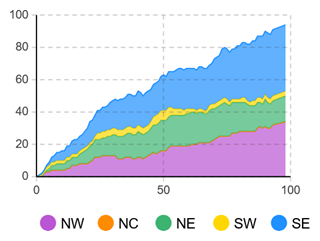 Time stack chart
To create a time stack chart
- Drag the
 Time Stack Chart element from the
  Analysis palette into the graphical editor.
 - In the Data section of the chart’s properties, configure the first data item.
- Select the data source for this item: Value or Data set.
- Specify the name for the data item in the Title box. This text will be shown in the chart legend.
- Specify the color for this data item’s bar. Click the control to use the color picker.
- Open the Appearance section of the chart properties. Select how horizontal and vertical axes’ labels are displayed, if at all. Select the Time axis format: it can be either Model time units or a real Model date in a certain format.
When finished, specify additional data items you want to be displayed in your chart.
To add a data item
By default, a new time stack chart already has one data item. To add another, follow these steps:
- Select the time stack chart in the graphical editor or in the Projects view.
- Go to the Data section of the properties.
- Click the
 Add button. A new property section with settings for one more data item will appear below.
To remove a data item
- Select the time stack chart in the graphical editor or in the Projects view.
- Go to the Data section of the properties.
- Locate the section defining the data item you want to remove from the time stack chart.
- In this section, click the
 button.
- General
-
Name — The name of the chart. The name is used to identify and access the chart from code.
Show name — If selected, the name of the chart is displayed in the presentation diagram.
Lock — If selected, the element is locked; it will not respond to any mouse actions during the model development time. To select the element, click its icon in the Elements view.
Ignore — If selected, the chart is excluded from the model.
- Data
-
Value — [Visible if the Value option is selected above] The expression evaluated to obtain new Y-axis values to be added onto the chart.
Data set — [Visible if the Data set option is selected above] Name of the data set collecting values to display in this chart.
Title — Data item name to be shown in the chart legend.
Color — The color of the data item. Click the control to adjust it using the Color picker.
The
 and
and  arrows — Allow you to rearrange the data items.
The
button — Allows you to remove data items from the chart.The
Add button — Creates a section for a new data item. - Data update
-
Update data automatically — If selected, new data samples will be added automatically.
Use model time — [Visible if Update data automatically is selected] If selected, the event will occur at the specified model time.
Use calendar date — [Visible if Update data automatically is selected] If selected, the event will occur at the specified calendar date.
First update time — [Visible if Update data automatically and Use model time are selected] The time of the first update defined as a number of model time units that must pass from the model start.
Update date — [Visible if Update data automatically and Use calendar dates are selected] The calendar date and time of the event.
Recurrence time — [Visible if Update data automatically is selected] The time that must pass between recurring updates.
Maximum number of samples (applies to ‘Value’ data) — The “tail size” of the data set. Defines the number of the latest data items this plot will keep.
- Scale
-
Time window — The time horizon displayed by the chart.
Time window moves — Specifies whether the time window moves according to the current model time (Continuously) or it moves only when a new data point is added to the chart (As data becomes available).
Vertical scale — Specifies the scale type for the vertical axis of the chart:
Auto — reserves an optimal space for the chart within the chart area
Fixed — defines the minimum and maximum axis points using the From and To edit boxes correspondingly 100% — scales the chart area to match the chart’s maximum Y-value - Appearance
-
Horizontal axis labels — Specifies the position of the horizontal axis labels relative to the chart:
None — No labels will be displayed
Below
AboveVertical axis labels — Specifies the position of the vertical axis labels relative to the chart:
None — No labels will be displayed
Left
RightTime axis format — The the time axis format to display: Model time units (0, 10, 20, …) or Model date (various date formats).
Style — Click to access extra appearance settings and then click each control to adjust them using the color picker.
Background color — The background color for the entire area allocated for the element. The background color for the chart area can be adjusted later in the Chart area section.
Border color — The color of the element border.
Labels color — The color of the chart labels.
Grid color — The color of the chart grid. Select no color if you do not want the grid to be displayed. - Position and size
-
Level — The level this chart belongs to.
X — The X-coordinate of the element’s upper left corner.
Y — The Y-coordinate of the element’s upper left corner.
Width — The width of the element (in pixels).
Height — The height of the element (in pixels).
- Legend
-
Show legend — If selected, the chart legend is displayed.
Area size — [Enabled if Show legend is selected] Controls the size of the legend area (between the element border and the divider): width for Below/Above legend position or height for Left/Right position.
Text color — [Enabled if Show legend is selected] The color that will be used to display the legend. Click the control to adjust the settings using the color picker.
Position — [Enabled if Show legend is selected] Controls the legend position relative to the chart.
- Chart area
-
This section defines the visual properties of the chart area.
X Offset — The horizontal offset of the chart area from the left edge of the element.
Y Offset — The vertical offset of the chart area from the left edge of the element.
Width — The width of the chart area (in pixels).
Height — The height of the chart area (in pixels).
Style — Click to access extra appearance settings and then click each control to adjust them using the color picker.
Background color — The chart area background color.
Border color — The color of the chart area border. - Actions
-
On selection change — The code executed when the user selects particular data items. This code is executed either when the user changes the selection by clicking on items in the chart legend, or when the selection is changed programmatically by selectItem().
You can use the following variables:
- int[] selectedIndices — returns the indices of currently selected data items
- boolean programmatically — defines whether items were selected programmatically (true) or not (false)
- Visibility
-
Visible — Toggles the visibility of the element. The chart is visible when the box is checked or when the specified expression evaluates to true, and not visible otherwise.
Agent presentation — If selected, the chart is included in the agent presentation. This means that if the agent hosting this control is embedded in another agent, the control will remain visible.
- Expert
-
Replication — The replication factor of the chart. Here you can specify how many copies of the chart will be created. If you leave this box empty, only one chart will be created.
- Data items
-
Function Description void addDataSet(DataSet ds) Adds a DataSet to the chart with default title "Data set" and default royalBlue color.
ds — the data set to addvoid addDataSet(DataSet ds, String title, Color color) Adds a DataSet with the specified title and color.
ds — the data set to add
title — the data set’s title
color — the data set’s colorint getCount() Returns the number of chart items (data items or data sets) currently displayed by this chart. ChartItem get(int i) Returns the chart item (DataItem, DataSet, etc.) with the given index. String getTitle(int i) Returns the title of chart item (DataItem, DataSet, etc.) with the given index. Color getColor(int i) Returns the color of the chart item (DataItem, DataSet, etc.) with the given index.
i — index of the itemvoid setColor(int i, Color c) Sets the new color of the chart item (DataItem, DataSet) with the given index.
i — index of the item
c — the new color of the itemvoid remove(int i) Removes the item (DataItem, DataSet, etc.) with the given index from the chart. int remove(ChartItem ci) Removes the given item (DataItem, DataSet) from the chart. void removeAll() Removes all items from the chart. - Selecting data items
-
Function Description void selectItem(int itemIndex, boolean selected) Selects/deselects (depending on selected value) the chart item with given index. void setSelectedItemIndices(int[] selectedIndices) Selects only chart items with the given indices.
selectedIndices — an array with indices of chart items to be selected (other chart items will be deselected), may be null — this clears selectionint[] getSelectedItemIndices() Returns the number of chart items (data items or data sets) currently displayed by this chart. - Setting chart’s axis scale
-
Function Description void setFixedVerticalScale(double maximum) Sets fixed scale for vertical axis of the chart.
maximum — maximum of chart axis scale - Updating chart data manually
-
Function Description void updateData() Updates all data items displayed by this chart. - Location
-
Function Description double getX() Returns the X-coordinate of the element (upper left corner). double getY() Returns the Y-coordinate of the element (upper left corner). void setX(double x) Sets the X-coordinate of the element.
x — the new value of X-coordinatevoid setY(double y) Sets the Y-coordinate of the element.
y — the new value of Y-coordinatevoid setPos(double x, double y) Sets new coordinates for the element.
x — the new value of x coordinate
y — the new value of y coordinate - Size
-
Function Description double getWidth() Returns the width of the element. double getHeight() Returns the height of the element. void setWidth(double w) Sets new width for the element.
w — new value of the chart widthvoid setHeight(double h) Sets new height for the element.
h — new value of the chart height - Visibility
-
Function Description boolean isVisible() Checks the visibility of the element. Returns true if the element is visible, and false otherwise. void setVisible(boolean v) Sets the visibility of the element.
v — visibility: if true — the chart is set to be visible, if false — not visible. - Copying chart data to clipboard
-
Function Description String copyToClipboard() Copies all chart data to the system clipboard in text form. Returns the text representation of all chart data.
-
How can we improve this article?
-