


This article describes how to control traffic at an intersection using traffic lights (the TrafficLight block from the Road Traffic library).
To learn how to draw an intersection, follow the short tutorial in Intersection.
To add a traffic light
-
Drag the
 Traffic Light element from the
  Road Traffic Library palette to the agent diagram that contains an intersection.
While it is not necessary to place it close to the intersection, doing so may help you understand the model logic.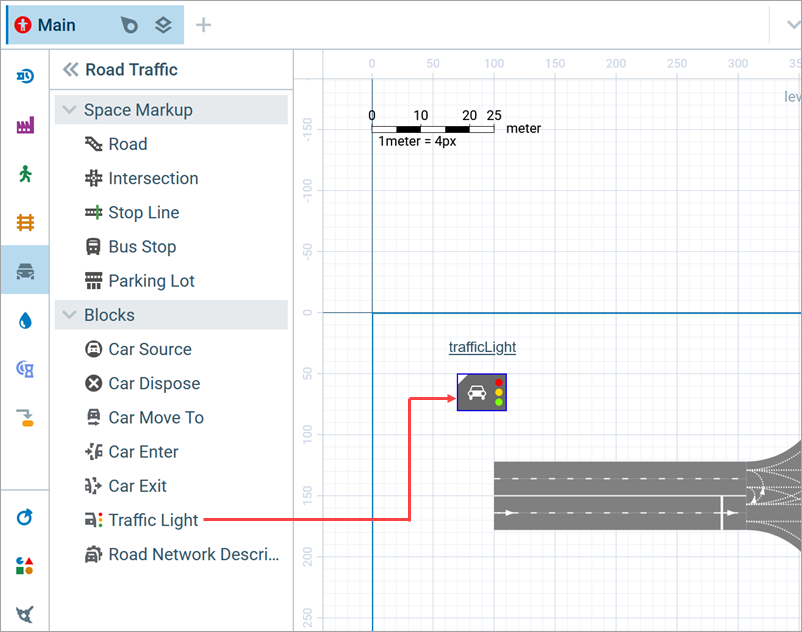
-
Select the Traffic Light block to open its properties.
Leave the Defines the mode for option at its default value, Intersection’s stop lines. This traffic light will control traffic (stop / enable) for all lanes of each road at the intersection. -
Specify the intersection that is controlled by this Traffic Light block. In the traffic light properties, click the
 button to the right of the Intersection combo box.
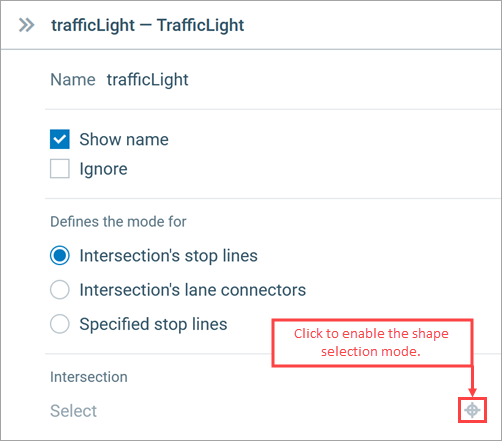
- This activates the shape selection mode. In the graphical editor, you will see that all shapes except the intersections are grayed out. Click on the intersection that will be controlled by this Traffic Light block.
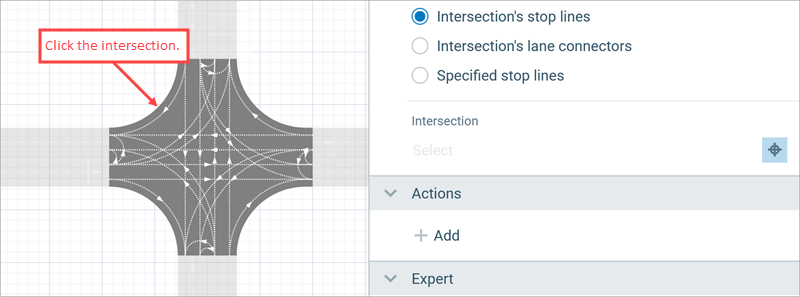
- The intersection name will be inserted into the Intersection combo box. Selecting the desired shape in the graphical editor eliminates the need to remember its name. This is especially helpful if your model contains many shapes.
-
Now you should specify the traffic light phase durations.
Each road that connects to the intersection requires a stop line on the lane that is moving towards the intersection. After specifying the intersection in the Traffic Light properties, all stop lines of this intersection will be listed in the Phases table below. Define the red, green, and, optionally, yellow phase durations for each stop line of the selected intersection. Let’s set up the traffic light phases step by step.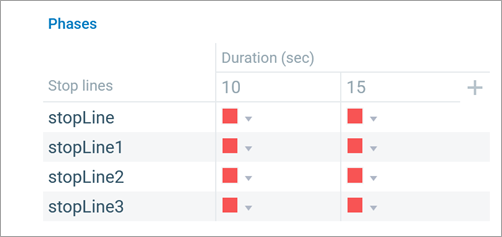
-
In our case, traffic on the horizontal road is allowed to move during the twenty-second phase. Then, it is stopped for 20 seconds to allow cars to drive through. By default, the table contains two columns, one for each phase. We need to define the green and red phases for each stop line. Begin by configuring the first phase.
Hover over the column header and click the edit icon to modify the length of the phase. In the dialog that appears, set the length to 20 seconds.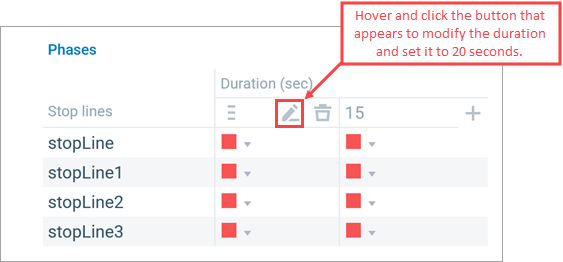
-
When you select a stop line in the Phases table, all the shapes in the graphical editor turn gray except for the stop lines, which are marked in purple.
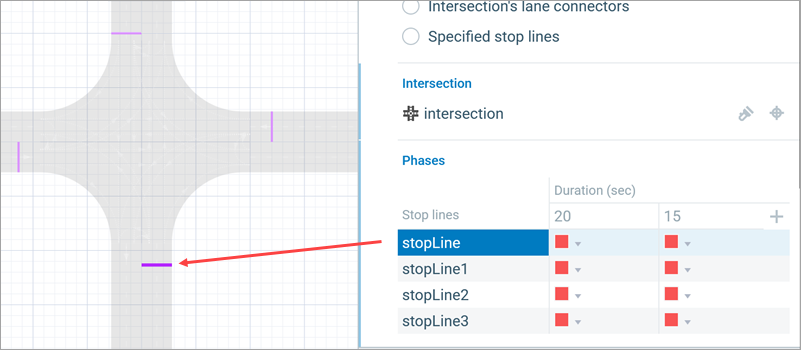
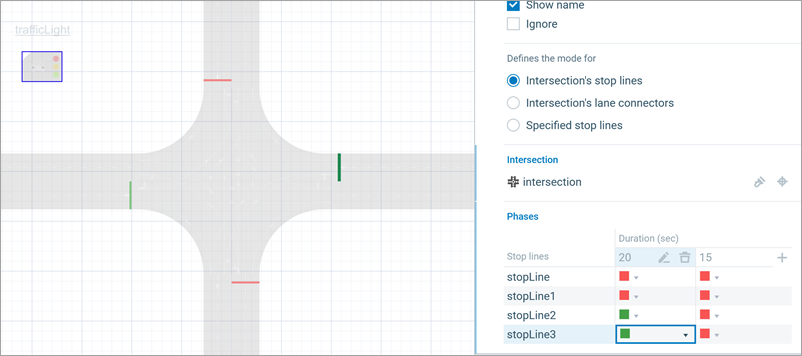
- Click a colored cell in the table to open the drop-down box and change its state to Green. The stop line’s color will switch from red to green, as will the color of the corresponding cell.
-
Another stop line located on the horizontal road also needs to be changed for the first phase. Since these stop lines belong to the same road, they should have the same phases.
-
Now, let’s configure the second phase.
In the Phases table, set its duration to 20 second. Then, configure the colors for the other two stop lines located on the vertical road.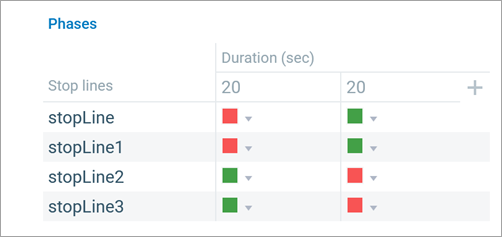
- The Phases table should now resemble the figure above.
-
How can we improve this article?
-