


AnyLogic provides a search menu to help you find locations on a GIS map. When you enter a search query in the search box, AnyLogic will find places that match the query and create a list of search results. All the results from the current search appear on the map as the corresponding markup elements, such as a GIS Point or GIS Region. They will stay marked until you close the search or start a new one, unless you save them as GIS Points or GIS Regions.
A search is first performed in the visible area of the map; then, if no results are found there, AnyLogic searches through the entire map. You can also set a custom search area in the Search section of the GIS Map properties, which can differ from the visible area of the map.
To find an element on the map
- Double-click the GIS Map to enter the edit mode.
- Click
 in the top left corner of the map element. The search dialog will open.
 - Alternatively, you can use the global search window. Open it by pressing Ctrl + F or clicking
 on the toolbar. This way, you will need to select GIS as the search Scope before performing the other steps.
 - Enter your query in the search box and select the element Type: Point for such locations as cities, stores, and streets, or Region for regions, districts, and countries.
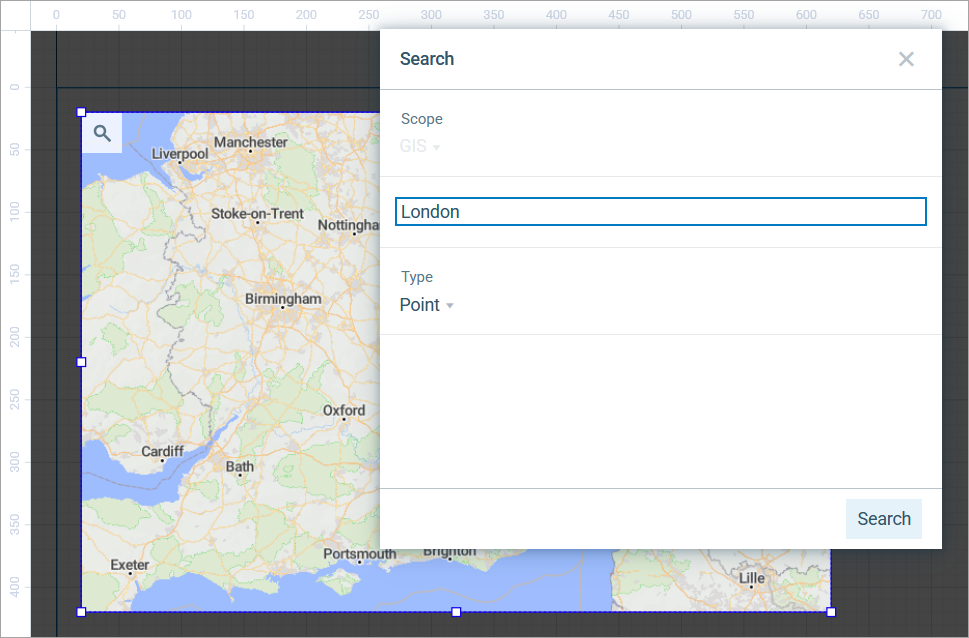
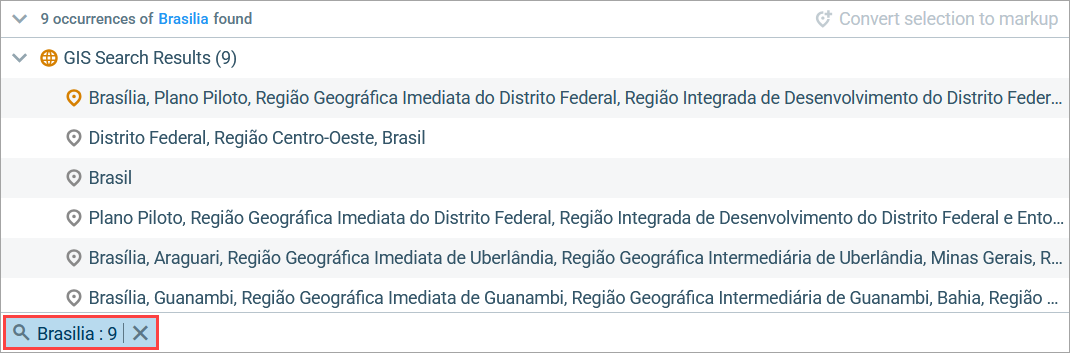
- To start searching for locations that match your query, click the Search button or press Enter. A view with the search results will appear below.
-
Elements found using the search are temporary. Points are marked with the GIS Point markup element, and areas are marked with the GIS Region element.
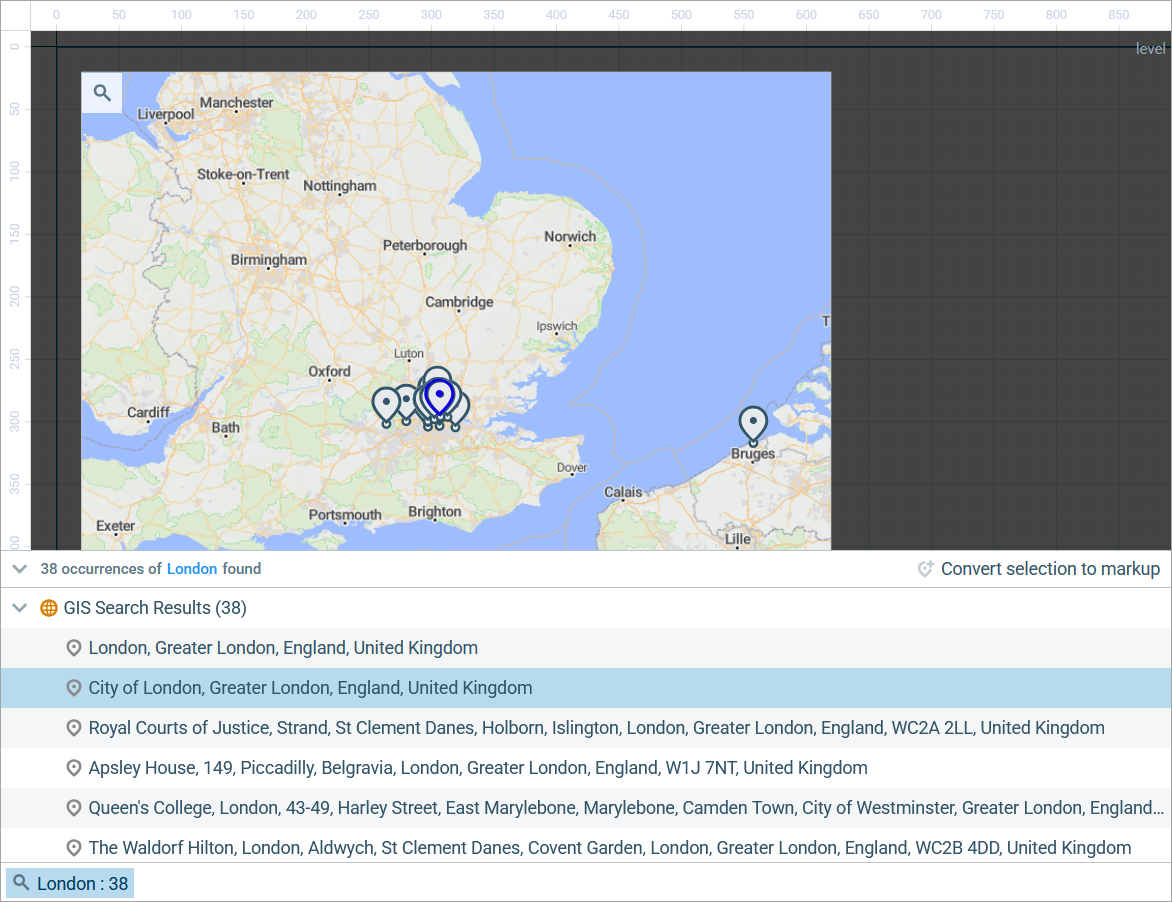
- To center the map on a temporary element, double-click the corresponding line in the search results.
To keep the search results in the model
- Search for a location on the map and go to the search results.
- Select the location you need to keep in the model for further use.
-
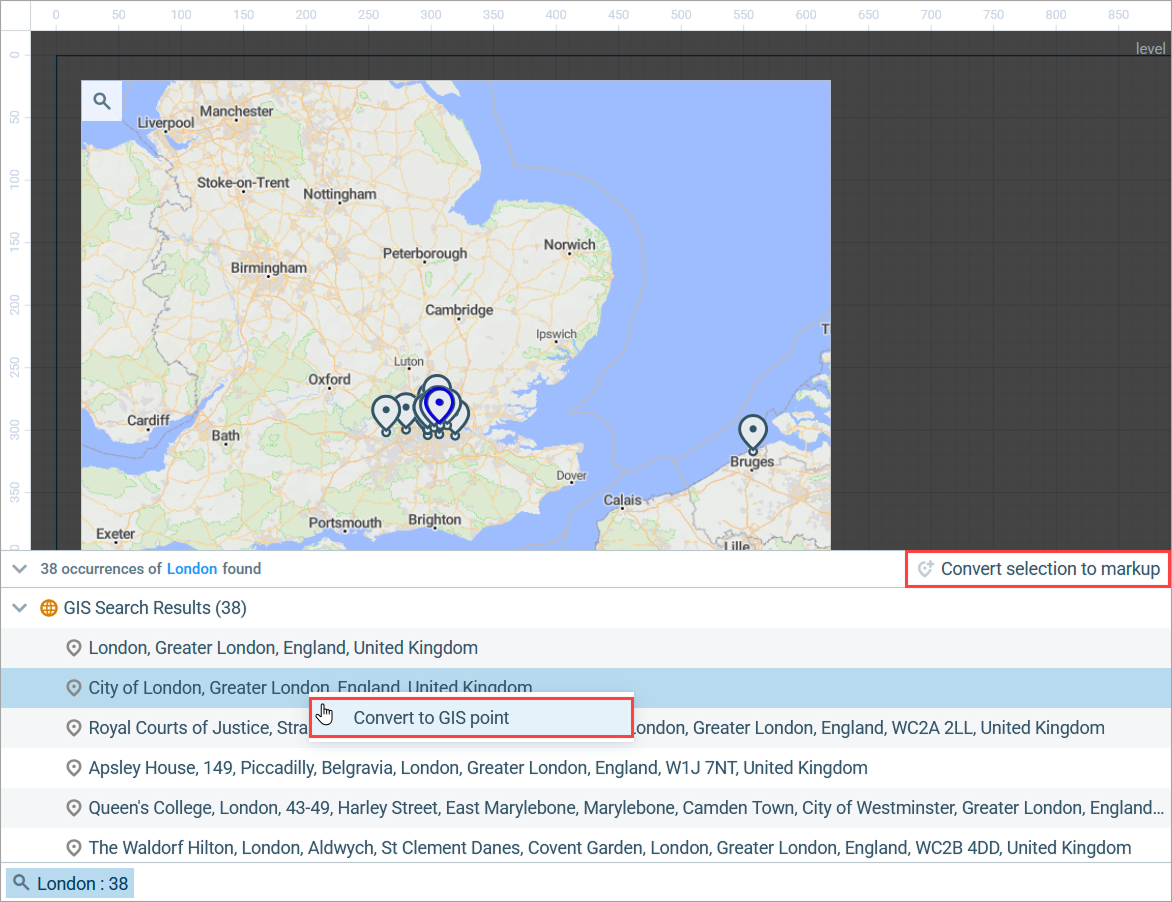
Right-click this line and select Convert to GIS point or Convert to GIS region. You can also use the
 Convert selection to markup button in the top right corner of this view. The location will be saved in the model as a GIS Point or a GIS Region, depending on the type of the element you are saving.
-
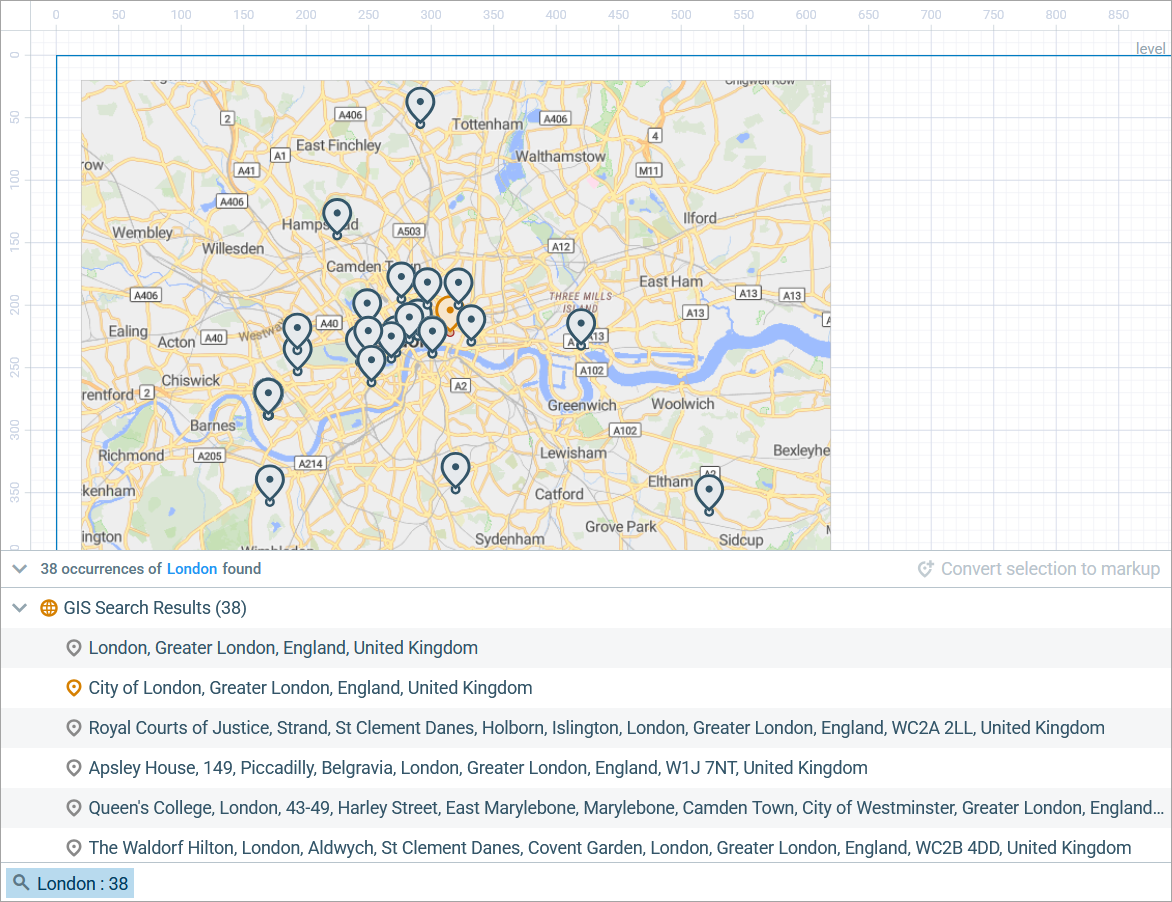
Converted elements are colored differently from the temporary ones, both in the search results and on the map.
-
The newly converted elements can be found in the Element view, under
 map.
map.
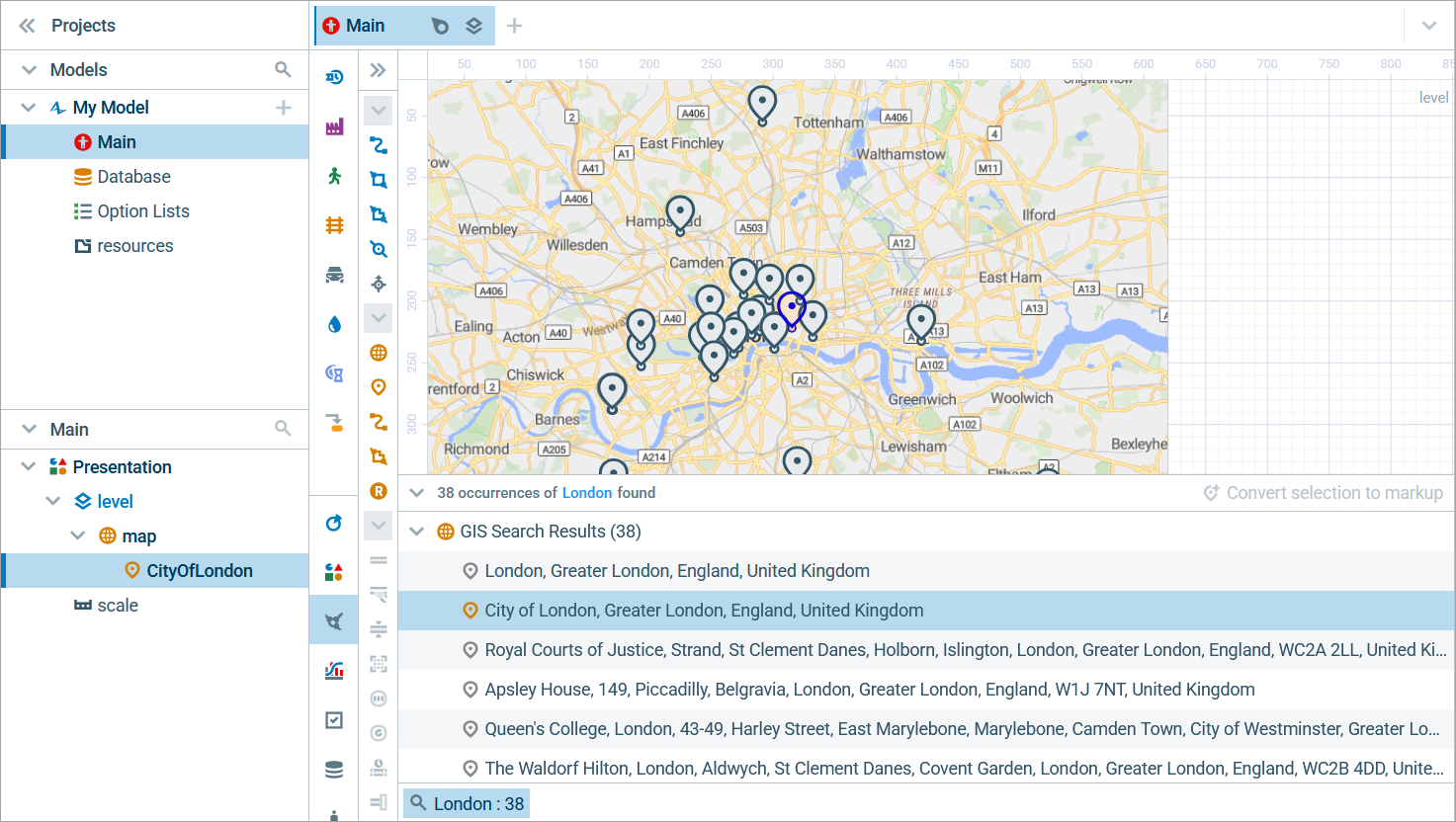
-
If you go to a converted element’s Properties, you will see its full address in the Title field. The element’s position is locked at the corresponding location on the map. To move it, you need to deselect Fixed position.
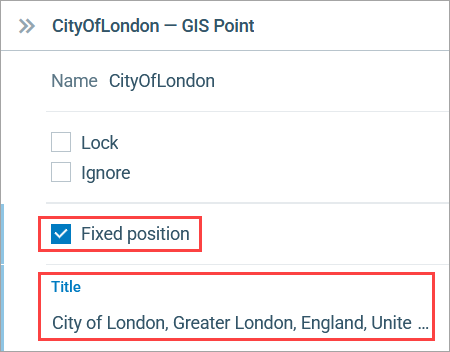
To find and convert a region
-
The instructions listed above also apply to searching for a region and converting the search results into a GIS Region element to keep it in the model. In the figure below, you can see that the top search result, which is a region, has been converted:
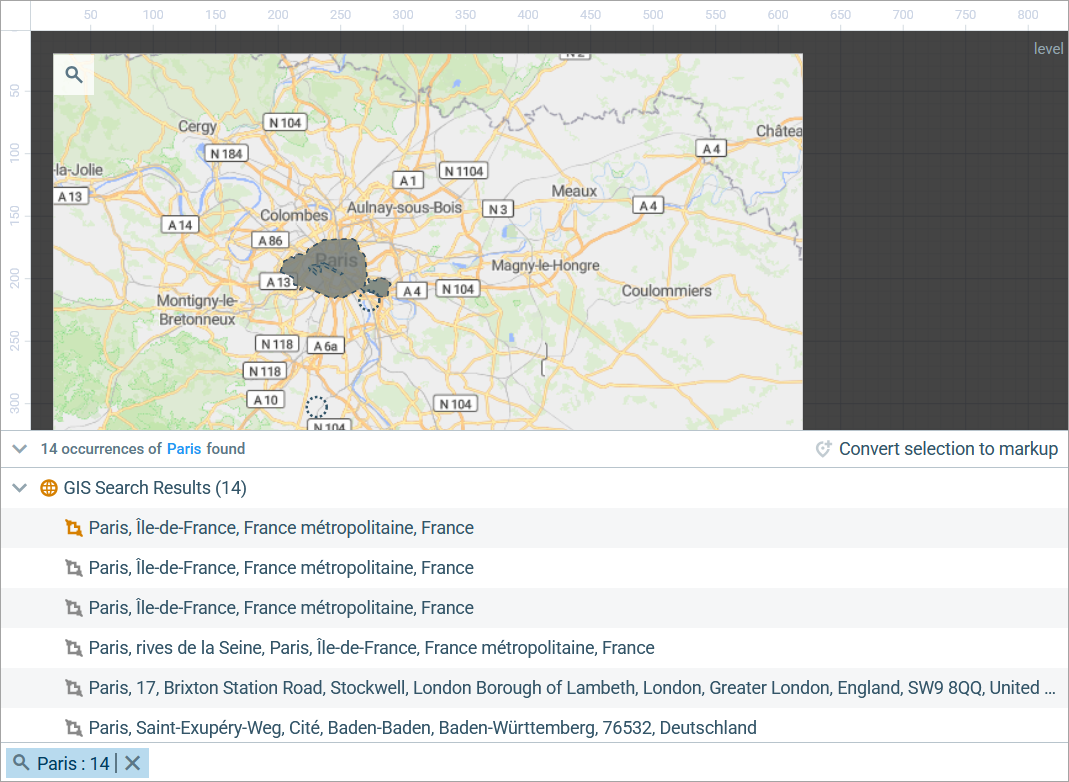
-
Sometimes when you search for an area, such as a country, the search results may not be one single region but a group of regions, also known as a multiregion. These elements are listed as one for your convenience.
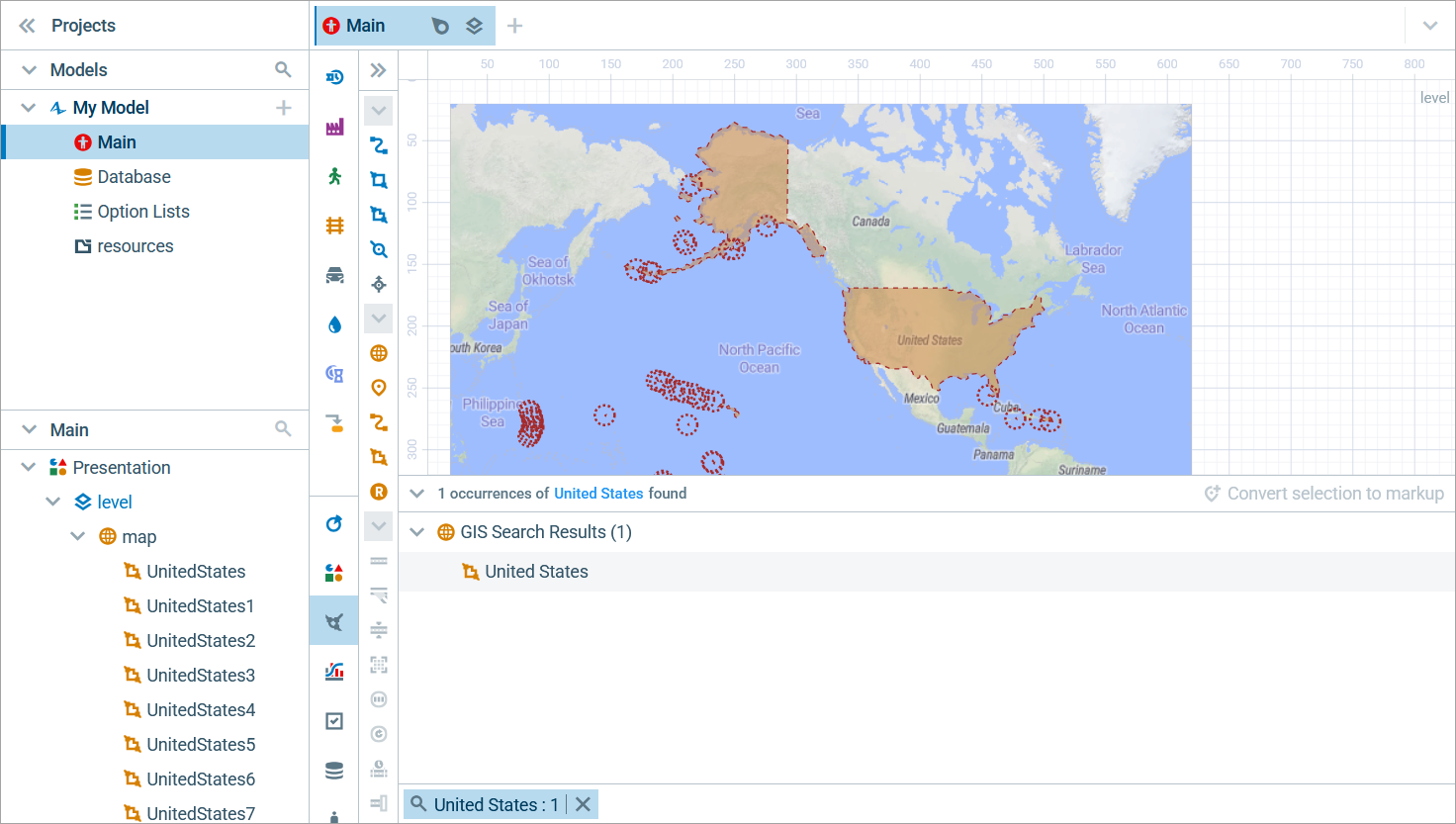 The United States of America states and territories selected as one multiregion, "United States"
To hide the search results
- Hover over the search query tab and click the
 icon that appears to the right.
-
How can we improve this article?
-