


A transition denotes a switch from one state to another. Any transition exiting a currently active state is an active transition: there is a possibility that the transition will be triggered. A transition becomes triggered if and when the trigger event specified in its properties occurs. Then, if the guard condition evaluates to true, the transition is considered taken, the statechart switches from one state to another and performs the specified action.
When you draw a transition, it is represented by an arrow, and its starting and ending points must lie on the boundaries of the respective states or pseudo states. A transition can cross simple state and composite state boundaries freely.
As a transition is taken, exit and enter actions of one or more states may be executed:
- If the starting point of a taken transition lies either on the boundary of a state or inside it, and its destination lies outside that state, the state is exited with its exit action executed.
- If the starting point of a taken transition lies outside a state, and its destination lies either on the boundary or inside that state, the state is entered with its entry action executed.
- In case some part of a taken transition lies inside a state, but both its starting and ending points lie outside, that state is considered neither entered nor exited.
There is a special type of transitions called internal transitions. An internal transition lies inside a state, and both starting and ending points of the transition lie on the border of this state. Since an internal transition does not exit the enclosing state, neither exit nor entry actions are executed when the transition is taken. Internal transitions can be very useful for implementing simple background jobs, which should not interrupt the main activity of the composite state.
To distinguish internal transitions, dotted arrows are drawn instead of regular solid ones.
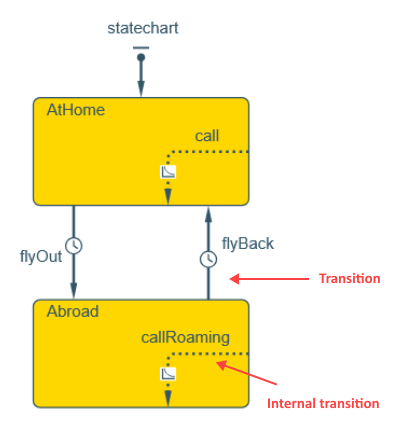 Transitions
Graphically, transitions are represented by an arrow which can be solid, dashed, or dotted. Solid arrows are used for regular transitions and, in case with branches, Conditional transitions. Dashed arrows are reserved for Default transitions exiting a branch. Dotted arrows are used for internal transitions.
To draw a transition
-
Drag the
 Transition element from the
  Statechart palette onto the graphical diagram of the required agent so that the starting point of the transition lies on the boundary of the source state or pseudo state. Then drag the ending point of the transition onto the boundary of the destination state or pseudo state.
-
In some cases, especially when you want to draw a transition containing turning points, it is more convenient to use drawing mode. To activate it, click the Transition element in the palette. Its icon will turn into
 .
.
Now you can draw a transition in the following way:
- First, click the point in the diagram where the starting point of the transition should be located.
- Then subsequently click the points where the transition should turn.
- To finish drawing, double-click the ending point of the transition.
- If you want to display the transition name, go to the Properties view, change the name from the default one if you need to, and select Show name.
In most cases, you will need to adjust the position of the transition name, as well as the trigger icon.
To reposition the transition name or trigger icon
- Select the transition element in the graphical editor.
- While the transition is selected, with the transition name and trigger icon underlined, drag the name or icon to the new position.
- General
-
Name — The name of the transition.
Show name — If selected, the name of the element is displayed in the presentation diagram.
Ignore — If selected, the element is excluded from the model.
Triggered by — Here you should select the type of trigger event for the transition. The transition can be triggered by:
Timeout — the transition is triggered after the specified timeout elapses
Rate — the transition is triggered with the specified rate
Condition — the transition is triggered when the specified Boolean condition evaluates to true
Message — the transition is triggered when a message arrives at the connected port
Agent arrival — the transition is triggered when the agent (whose behavior is defined by this particular statechart) reaches its destinationTimeout — [Visible when Triggered by: Timeout is selected] The timeout triggering the transition. The triggering will be enabled after the specified timeout elapses.
Rate — [Visible when Triggered by: Rate is selected] The rate triggering the transition. The transition is executed with the timeout distributed exponentially with the parameter Rate (measured from the moment the statechart came to the transition’s source state): if the rate is 5, the transition will be executed on average 5 times per time unit, and so on.
Condition — [Visible when Triggered by: Condition is selected] The condition triggering the transition. The triggering will be enabled when the specified Boolean expression evaluates to true.
Message type — [Visible when Triggered by: Message is selected] The message triggering this transition. Here you should specify the message. You can select one of the most used types (boolean, int, double, String), Agent, Main, Object, or, if your messages are of some other Java class, Other: in this case you will have to specify the required class name in the Class name field below.
Fire transition — [Visible when Triggered by: Message is selected] Here you can impose additional condition that should be satisfied to allow transition triggering.
Unconditionally — Select this option if you do not want to perform message type checking.
On particular message — If selected, only messages equal to the text string specified in the Message edit box below will trigger the transition.
If expression is true — In the Expression field below you can define a sophisticated message contents checking. The just received message can be accessed here as msg variable. If the specified expression returns true, the transition is triggered.Action — Here you can specify Java code to execute when the transition is taken.
- Expert
-
Guard — Boolean expression that allows (if returns true) or prohibits (if returns false) the transition. If the guard expression is not specified, true is assumed.
General properties for transitions exiting branches are slightly different:
-
Conditional — If selected, this transition will be taken when the specified boolean Condition is true. The conditions must be exhaustive and unambiguous. If two or more conditions evaluate to true, one of the transitions is selected non-deterministically.
Default (is taken if all other conditions are false) — If selected, the transition is the default branch exit and will be taken if conditions defined for all other transitions exiting the branch state are false. There can only be one default transition for every branch. If all outgoing transitions are closed and there is no default exit from a branch, a runtime error is issued.
When a statechart enters a simple state, the triggers of all outgoing transitions (including the transitions outgoing all composite states containing the simple state) are collected and the statechart begins to wait for any of them to occur. When a trigger event occurs, the guard of the corresponding transition is evaluated. If the guard is true, then the transition may be taken (we say "may be" because alternative simultaneous events can exist at the AnyLogic simulation engine, which might reset the trigger). This algorithm of guard evaluation is called “guards-after-triggers”.
If several triggers are signaled at the same time, and the corresponding guards are true, the transition to be taken can be chosen randomly or deterministically.
A transition can be triggered as a result of various types of events occurred, listed in the table below. You specify the trigger type in the Triggered by property of a transition.
| Trigger type | Primary use | Transition fires |
|---|---|---|
 Timeout |
Timeout: change state if other awaited events do not occur within the specified time interval. Delay: stay in a state for a given time, then leave. |
After a specified time interval measured from the moment the statechart enters the direct “source” state of the transition, such as the state on whose boundary the transition start point is located. The timeout expression is calculated one time when the statechart enters that state. The expression can be stochastic as well as deterministic. |
 Rate |
Sporadic state change with a known mean time. Used in agent-based models to represent sporadic decisions made by an agent under a certain, possibly variable, influence (purchase decisions, adoption of ideas, etc.). | Same as timeout, but the time interval is drawn from an exponential distribution parameterized with the given rate. For example, if the rate is 0.2, the timeouts will have mean values of 1/0.2 = 5 time units. If a change occurs in the agent while the rate transition is active (namely, if onChange() function is called), the rate expression is re-evaluated and, if it gives a new result, the transition is rescheduled using a new exponential distribution. |
 Condition |
Monitor a condition and react when it becomes true. For example, buy if the stock price falls below a certain threshold, launch a missile if the aircraft is closer than 5 miles, etc. | Once a given condition evaluates to true. The condition is an arbitrary Boolean expression and may depend on the states of any agents in the whole model with continuous as well as discrete dynamics. In most cases you can assume the condition is constantly monitored while the transition is active. |
 Message |
React to messages received by the statechart or by the agent from the outside. The messages can model communication between people or organizations, commands given to a machine, physical products, electronic messages, etc. | Upon reception of a message that matches the template specified in the transition properties. |
 Agent arrival |
React to agent arrival to the specified destination. Can be used in moving agents. | When the agent arrives at the destination point (assuming its movement was initiated by calling moveTo()). |
The transition becomes enabled after the specified amount of time (the timeout) elapses, calculated starting when the statechart comes to the source state of the transition. Such transitions may be used to model delays and, combined with alternative transitions, timeouts.
Timeout triggered transitions are labeled with .
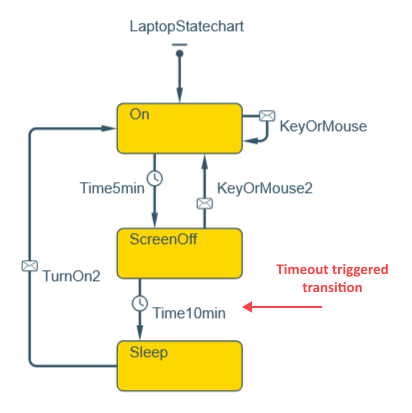
To define a timeout triggered transition
- Select the transition in the graphical editor.
- In the Properties view, select Timeout from the Triggered by drop-down list.
- Specify the timeout in the Timeout edit box and select the units in the drop-down list.
- Working with timeout triggered transitions programmatically
-
Function Description boolean isActive() Returns true if the transition is currently scheduled, false otherwise. double getRest() Returns the time remaining before the scheduled occurrence of the transition, in model time units. If the transition is not scheduled, the function returns infinity. double getRest(TimeUnits units) Returns the time remaining before the scheduled occurrence of the transition, in given time units. If the transition is not scheduled, the function returns infinity.
units — time unit constant
Example:
transition.getRest(MINUTE) returns the remaining time in minutes.
Statechart transition with a trigger of type rate. A rate is a form of updatable exponential timeout. Such transitions are executed with the timeout distributed exponentially with the parameter rate (measured from the moment the statechart came to the transition’s source state): for instance, if the rate is 5, the transition will be executed on average 5 times per time unit. Rate triggered transitions are labeled .
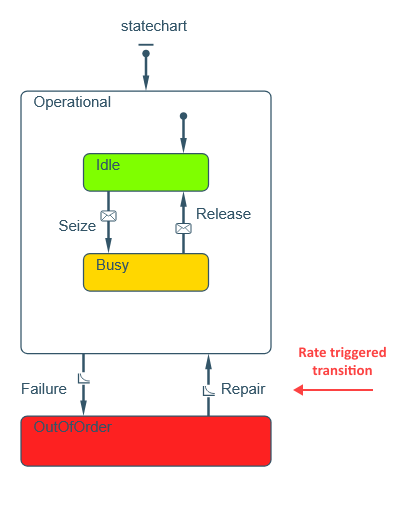
To define a rate triggered transition
- Select the transition in the graphical editor.
- In the Properties view, select Rate from the Triggered by drop-down list.
- Specify the rate value in the Rate edit box below.
If the rate changes dynamically, the timeout gets re-evaluated; such changes may only be noticed by transition if onChange() is called for the agent. If the new rate value is negative, an error is thrown.
- Working with rate triggered transitions programmatically
-
Function Description boolean isActive() Returns true if the transition is currently scheduled, false otherwise. double getRest() Returns the time remaining before the scheduled occurrence of the transition, in model time units. If the transition is not scheduled, the function returns infinity. double getRest(TimeUnits units) Returns the time remaining before the scheduled occurrence of the transition, in given time units. If the transition is not scheduled, the function returns infinity.
units — time unit constant
Example:
transition.getRest(MINUTE) returns the remaining time in minutes.
The transition is executed when the condition becomes true. If the agent has continuously changing variables, the numeric engine constantly monitors the condition. In purely discrete models the condition is tested when something changes in the agent, for instance, when onChange() is called.
Condition triggered transitions are labeled .
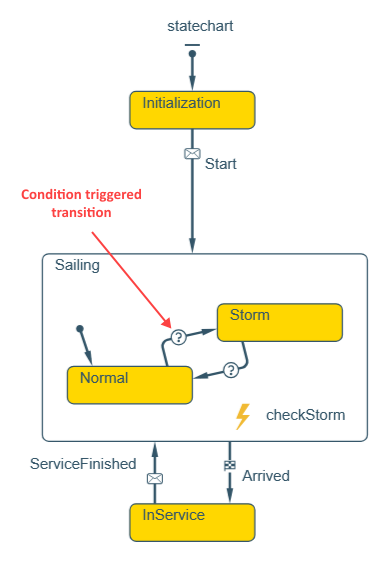
You can find the statechart shown in the figure above in the Ship agent type in the following demo model.
Demo model: Container Line Open the model page in AnyLogic Cloud. There you can run the model or download it (by clicking Model source files). Demo model: Container LineOpen the model in your AnyLogic desktop installation.To define a condition triggered transition
- Select the transition in the graphical editor or in the Projects view.
- In the Properties view, select Condition from the Triggered by drop-down list.
- Specify the condition in the Condition edit box below.
A transition with such a trigger is enabled when the specified Boolean expression is true. If by the time the statechart comes to the source state of such transition the expression is already true, the transition becomes enabled immediately. Otherwise, it becomes enabled as soon as the expression becomes true — for example, as a result of equation solving, as a change event may contain variables changing continuously according to a set of differential and algebraic equations. When the condition becomes true, AnyLogic determines the switch point — the moment when the expression becomes true — with the accuracy set by the user.
It is important to understand that when the transition’s condition is checked by the model:
- If the agent has continuously changing variables, the numeric engine constantly monitors the condition: the condition is checked on every step of the numeric equation solver.
-
In purely discrete models the condition is tested when something changes in the agent:
- when any event occurs in this agent (a transition is taken, some another event occurs, parameter's On change action is executed, a message is received by one of agent’s port, etc.)
- when the user explicitly calls the onChange() function of the agent
If something changes in the embedded object, the condition is not checked!If you need to check conditions in embedded agents or populations, you can establish periodic checking of those conditions by doing the following. Set the Enable synchronous steps option in the Space and network section of the properties of the upper level agent where these agents reside. Add onChange(); code in the On step action (in the Agent actions properties section) of the agent where you want the conditions to be checked with certain frequency. This is a more efficient solution than having a cyclic event calling onStep() in each embedded agent.
When specifying a change event, you should keep in mind the so-called sensitivity problem. Let the transition wait for the Boolean expression x>=5, and let x change continuously in time as shown in the figure below:
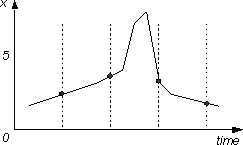 Sensitivity problem
As the numeric equation solver works in steps, it may happen that x will exceed the value 5 and get back in between the two steps. In this case the change event will not be detected. You should be aware of these situations when modeling systems where such error might be critical. If you encounter such a problem, you should make numerical method accuracies smaller.
Such transitions are executed when the statechart receives a message (an instance of an arbitrary Java class, or a primitive type value) that conforms with the defined message descriptor. Arrival triggered transitions are labeled .
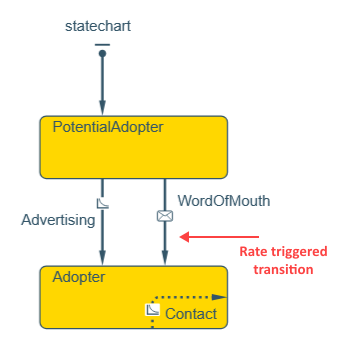
You send messages between agents by calling one of the agents’ send() functions.
When a statechart receives a message:
- If there is one or several transitions outgoing from the current simple state or any of its container states, where the trigger matches the first event in the queue, such transitions become enabled: one of them is taken depending on guards. The message is immediately consumed.
- Otherwise, the message is discarded.
You can perform message checking and discard messages not matching the defined conditions. The match can be determined using only the message class and/or both the message class and the object.
- You can define message type checking to allow triggering a transition only by messages of some particular message type.
- You can also filter messages by contents. You can define a message descriptor and accept only messages matching this descriptor. An event descriptor is a filter for message events: an object which is compared with a received message to decide if a transition should be triggered. Otherwise you can define some Boolean condition operating with message contents and check it on each message reception. The transition will be triggered only when this condition is true. Since you can refer to the message contents in this expression, this way you can implement sophisticated message contents checking.
To define a message triggered transition
- Select the transition in the graphical editor.
- In the Properties view, select Message from the Triggered by drop-down list.
- If you want to perform message type checking, specify the message type allowed to trigger the transition using Message type parameter. To define some Java class, select the Other button and enter the class name in the edit box on the right. In this case transition will be triggered only by messages of this particular type or Java class.
- If you do not wish to perform message type checking, leave the default settings when Other button is selected and Object class is specified.
- Now define the message contents checking conditions using the Fire transition group of buttons.
- In case you do not wish to perform message contents checking, simply select the Unconditionally option.
- If you want to define the message descriptor and accept only messages with the same contents, select the On particular message option and specify the descriptor value in the Message edit box below. It works in the following way: when a message is received by the statechart, AnyLogic calls the equals() function of a descriptor, giving a reference to the message as a parameter. The equals() function can only use message type information or look at message parameters. If it returns true, then the event matches the descriptor and the transition should be taken. false means no match. Possible message descriptors are "STOP!" for a message of type String, or 5.0 for a message of type Double.
- If you want to define sophisticated message contents checking using a condition, select the If expression is true option. Enter the expression in the edit box below. Here you can access the received message as msg variable.
- Enter the transition’s guard expression in the Guard edit box.
- Enter the transition’s action code in the Action edit box.
Sometimes you may need to place incoming messages into the statechart queue. The message queue is necessary because a message can arrive when the statechart can not respond to events, like while a transition is being executed.
The queue is processed by the statechart every time something occurs to the statechart or when the fireEvent() function is called. It iteratively checks all messages in the queue starting from the earliest one according to the following algorithm:
- If there is one or several transitions outgoing the current simple state or any of its container states the trigger of which matches the currently checked message, such transitions become enabled: one of them is taken depending on guards. This message and all preceding messages in the queue are discarded. The next message in the queue is processed.
- If there are no such transitions, the next message is processed.
A statechart can make several consequent steps processing several messages from the queue. These steps take zero model time.
These transitions are triggered when an agent (whose behavior is defined by this particular statechart) reaches its destination.
An arrival transition triggers if the agent lives in continuous or GIS space and its movement was initiated by calling one of the agent’s moveTo() or similar movement functions or with a MoveTo block from the Process Modeling Library.
Arrival triggered transitions are labeled .
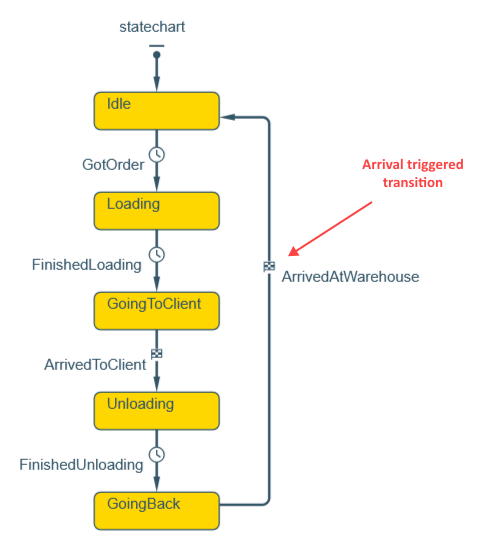
You can find the statechart shown in the figure above in the Truck agent type in the following demo model.
Demo model: Statechart for Delivery Truck Open the model page in AnyLogic Cloud. There you can run the model or download it (by clicking Model source files). Demo model: Statechart for Delivery TruckOpen the model in your AnyLogic desktop installation.To define an arrival triggered transition
- Select the transition in the graphical editor or in the Projects view.
- In the Properties view, select Agent arrival from the Triggered by drop-down list.
- Optionally, enter Java code to be executed on transition occurrence in its Action property field.
A guard is an arbitrary Boolean expression that can refer to any element in the model. When a transition is ready to fire, it performs one final check: it checks its guard and, if the guard evaluates to false, the transition is not taken. This way you can impose additional conditions on state transitions.
While the condition that triggers the transition is monitored constantly as long as the transition is active, the guard is only checked when the transition’s trigger is available and the transition is ready to be taken.
If the transition was ready to be taken, but the guard evaluated to false and it was not:
You can bring the statechart to different states depending on conditions, or merge several transitions so they can perform a common action. To do so, you can use the  Branch element. Read more about branching here.
-
How can we improve this article?
-